

As an Amazon Associate we earn from qualifying purchases. If you buy through links on this page we may receive a commission at no extra cost to you. Product details come from Amazon listings and can change.
This guide covers the best award winning drawing tablets for kids, teens and beginners who want to draw on a screen or on a pen pad. The phrase award winning is a shopping label, so this guide does not claim any award for these products. None of the ten listings below states an award in its title or bullets, which is why each pick is judged on what its listing describes: screen size, pen design, whether a computer is needed, included software and the kind of artist it suits.
The guide is split into three groups. Standalone tablets run apps without a computer, pen tablets need a computer but have no screen, and pen displays show the artwork directly under the pen. Each group suits a different child, so the picks follow that logic, and the buying guide below explains age fit, safety labels and a learning path.
Prices change often, so this guide does not quote them. Each pick links to its live listing, where the current price, bundle contents and shipping details appear. Read that page before you buy, because included items and software can change between sellers.
Key Takeaways
Best Award Winning Drawing Tablets at a Glance
| Product | Our score | |
|---|---|---|
| PicassoTab 10″ Standalone Drawing Tablet Best Overall |
8.8 / 10 | Check Price |
| Wacom Intuos Small Best Pen Feel |
9.2 / 10 | Check Price |
| RubensTab T11 Pro standalone Drawing Tablet Best Compact Standalone |
8.8 / 10 | Check Price |
| RubensTab T12 Standalone Drawing Tablet Best Large Standalone |
9.0 / 10 | Check Price |
| Wacom Intuos Medium Best Wireless Pick |
9.0 / 10 | Check Price |
| HUION HS611 10×6 inch Drawing Tablet 8192 Pen Pressure Best Shortcut Keys |
9.0 / 10 | Check Price |
| Graphics Tablet with Screen UGEE UE12 Plus 11.9 Inch Best Small Screen |
8.8 / 10 | Check Price |
| HUION Kamvas 13 Best Color Accuracy |
9.0 / 10 | Check Price |
| HUION KAMVAS 16 Best Large Screen |
8.6 / 10 | Check Price |
| Wacom Cintiq 22 Best Pro Display |
9.0 / 10 | Check Price |
How We Chose the Best Award Winning Drawing Tablets
This is a research based guide, not a lab comparison. Each pick was read against its listing details, including screen size, pen pressure levels, connection type, included software, bundled accessories and any safety or certification statements. The products were grouped by setup, so a child who needs no computer is not compared unfairly with a pen display that depends on a PC. Duplicate listings for the same model were merged into one pick, and the list keeps a range from simple pads to pro level displays.
Every pick has an editorial score out of 10 that blends features, specs and use case fit for kids, teens and beginners. The score does not measure durability or color accuracy in a lab, and it can shift when a listing changes. Award words were checked strictly. No product here is called an award winner, because none of the listings states an award. The mix of simple setups and pro displays lets readers choose by need rather than by name.
In-Depth Reviews
1. PicassoTab 10″ Standalone Drawing Tablet: Best Overall

Our score: 8.8/10 iOur editorial score (1 to 10), based on listing specs, features and how well each pick fits its use case. It is not an Amazon customer rating.
10 inch laminated screen 4096 pressure levels 6GB RAM and 64GB storage No computer needed
The PicassoTab 10 inch Standalone Drawing Tablet is the top pick because it removes the biggest obstacle for a young artist, which is needing a free computer before drawing can start. The listing describes a compact 10 inch device that runs its drawing apps directly on its own screen. For a child who wants to sketch at the kitchen table or on a sofa, that single feature makes the tablet ready to use right out of the box. The listing also presents it as a complete starter package rather than a bare pen, which explains its place at number one.
Inside the package, the listing names a laminated screen that it says reduces glare and parallax, along with a 4096 level pressure sensitive stylus. The octa core processor comes with 6GB of RAM and 64GB of storage, which the listing says can be expanded up to 1TB. Five creative apps are preloaded for drawing, painting, animation, tutorials and guided lessons. Two app upgrades are included, a lifetime PRO upgrade for a drawing app and a lifetime VIP upgrade for a tutorial app, along with a premium case, a drawing glove, a universal power adapter and a pre installed screen protector.
This tablet suits a beginner aged about 8 to 16 who wants guided steps rather than a blank page. Lessons that move from basic shapes to shading and then to full scenes match the way many young artists learn. Parents who want one device for drawing, schoolwork and light streaming will also find the setup practical. Because the listing describes a general purpose device, a teen may need agreed limits on app use so drawing time stays focused on art.
Keep a few caveats in mind. The screen is 10 inches, so it is smaller than the 12 inch RubensTab T12 and may feel tight for large murals. The pressure figure is 4096 levels, which is lower than the 8192 and 16384 levels on several pens in this guide, though most early practice will not reveal the gap. Check that the bonus accessories are in the box when the parcel arrives, and fit the screen protector before the first session. Expandable storage is handy for big art files, but a child should save work often to avoid losing a long piece.
2. Wacom Intuos Small: Best Pen Feel
Our score: 9.2/10 iOur editorial score (1 to 10), based on listing specs, features and how well each pick fits its use case. It is not an Amazon customer rating.
Small pen pad EMR battery free pen Wired USB connection Software included
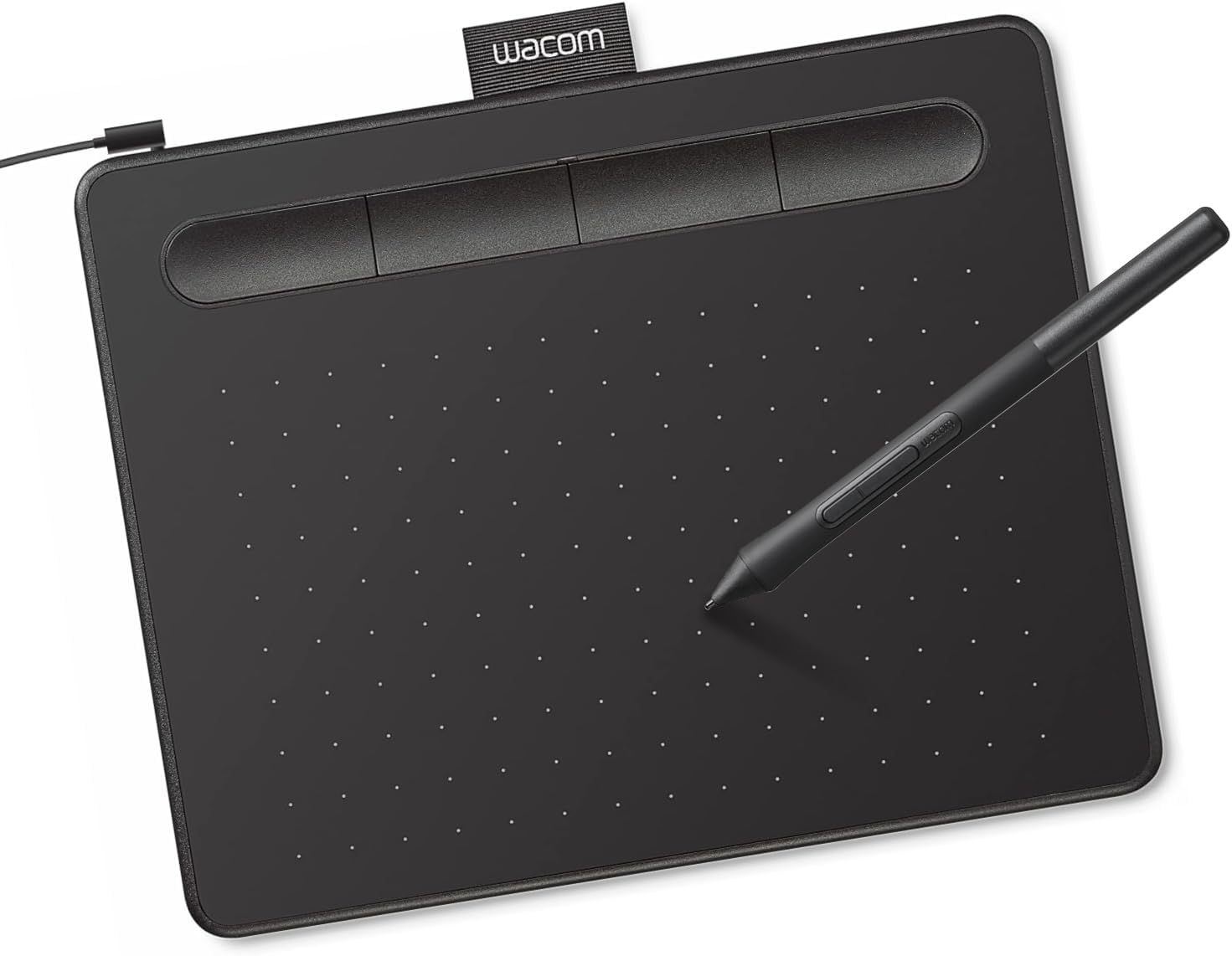
The Wacom Intuos Small is the pick for a family that wants the pen on paper feel that the listing describes as the heart of the design. Wacom calls its EMR pen technology battery free, and the listing says the pen feels like drawing on paper. The listing also says the brand is the preferred drawing tablet of many professional graphic designers, which gives it a strong reputation among artists. This is a pen tablet rather than a screen, so the drawing happens on a small pad while the image appears on a computer monitor.
The package includes the pad, the pen and software, and the listing says buyers can register the tablet to gain access to creative software and Wacom’s online training. The Intuos works with any software program that accepts a pen tablet, so a child can start in a free painting app and move to a paid design program later. The pen needs no battery or charging, which removes one chore from the routine. The compact working area suits a desk, a bedroom table or a shared family computer, and it slides into a drawer when not in use.
This pick suits a teen who already draws on paper and wants to move into digital work, and a younger child with an adult helping to set up the software. Because the pad is a control surface and not a display, children usually need a few sessions to match hand movement to the cursor on the screen. Patient learners will enjoy that challenge, while a child who expects instant results may prefer a pen display. Art teachers running a computer lab may also find a small pad useful, since each student can share the same setup.
The caveats are simple. The tablet cannot draw alone, and a wired connection means a cable runs to the computer, so choose a spot where the cable will not catch a cup or a lamp. Replacement pen nibs are small parts and belong out of reach of children under 3, with an adult keeping spares. A helpful tip is to spend a week on simple tracing and line exercises before opening complex software. Children who want a larger drawing surface can later compare this model with the Intuos Medium, which offers a bigger working area.
3. RubensTab T11 Pro standalone Drawing Tablet: Best Compact Standalone

Our score: 8.8/10 iOur editorial score (1 to 10), based on listing specs, features and how well each pick fits its use case. It is not an Amazon customer rating.
10.1 inch Full HD screen 5800mAh battery Up to 5 hours use USB C charging
The RubensTab T11 Pro standalone Drawing Tablet is the compact alternative in this guide. The listing describes a self contained device with a 10.1 inch Full HD IPS screen, sold as ready to draw with no computer needed. Its design focuses on portability, and the listing says the included adjustable stand case works for both desk use and travel. That makes it a sensible pick for a teen who sketches on a commute, during a holiday or in a waiting room where a laptop would be too much to carry.
The listing names a high sensitivity pressure pen that needs no battery, which is a helpful detail for a child who will carry the device. The tablet comes with pre installed drawing apps and a 1920 by 1200 resolution screen that the listing says offers vibrant colors and sharp detail. A built in 5800mAh battery is listed to provide up to 5 hours of continuous use, and USB C charging is included. The listing also says the tablet can take notes in meetings or lectures, which broadens its appeal to older students who want one device for art and class work.
This pick suits a child aged about 8 or older who wants to start drawing without a computer, and it suits a teen who needs sketches and notes in one place. The listing says the apps help beginners learn while letting experienced artists work straight away, which makes the device flexible across skill levels. Parents who prefer a simple sketch pad rather than a full studio can treat it that way, using a few apps and a clear routine. Its compact body fits a school bag beside a textbook.
Several practical points matter. The listing uses two brand names, RubensTab and Frunsi, so confirm the exact model and the seller before buying, and check that the warranty details are in the box. Battery life is listed as up to 5 hours, so charge the device the night before a long session and keep the USB C cable with the tablet. The listing mentions GMS, FCC and CE certification, which are useful signs of standards but do not replace an adult check of age labels. Store the pen in the case so the tip stays protected.
4. RubensTab T12 Standalone Drawing Tablet: Best Large Standalone

Our score: 9.0/10 iOur editorial score (1 to 10), based on listing specs, features and how well each pick fits its use case. It is not an Amazon customer rating.
12 inch Full HD display 6GB RAM and 128GB storage Octa core CPU Four bonus items
The RubensTab T12 Standalone Drawing Tablet is the pick for a young artist who wants more canvas without a computer. The listing describes a sleek 12 inch portable tablet with a Full HD display, and the extra width gives room for larger sketches, comic panels and shared family projects. Because it runs on its own, it avoids the setup of a laptop, which makes it practical for a bedroom, a playroom or a family room. Its size is the main difference from the 10 inch models, and that choice is worth making early.
The listing names several creative apps, including Sketchbook, Krita, Infinite Painter and FlipaClip. Those cover drawing, painting and frame by frame animation, so a child can explore several art styles on one device. A fully laminated screen is said to minimize parallax, which helps the pen tip feel close to the line. The device has 6GB of RAM and 128GB of storage, so projects and photos have space. Four bonus items come in the box: a tablet case, a drawing glove, a universal power adapter and a pre applied screen protector.
This tablet suits a teen who wants a serious sketch and animation tool, and a tween who likes making short flip book movies. FlipaClip is listed by name, which can introduce a young animator to timing, frames and planning, skills that build patience. The larger display also lets two siblings share one screen for a joint drawing, as long as they take turns with the pen. The listing presents the device as an all round tool, so it suits families who want one tablet for art and light school work.
The caveats are worth weighing. The 12 inch body is bulkier than the 10 inch models, so it fits a bag less neatly and can feel heavy for a small child who carries it all day. The listing does not state a battery life, so keep the charger close and ask the seller about battery details before buying. Set a fixed drawing spot with the case and stand, so the screen is not knocked off a desk. The bonus protector is a helpful start, but a child should still wipe the screen with a soft cloth and clean hands.
5. Wacom Intuos Medium: Best Wireless Pick

Our score: 9.0/10 iOur editorial score (1 to 10), based on listing specs, features and how well each pick fits its use case. It is not an Amazon customer rating.
Bluetooth or USB A EMR battery free pen Medium working pad Software and training included
The Wacom Intuos Medium Bluetooth Graphics Drawing Tablet is the wireless member of the Intuos family. The listing calls it industry leading in control and precision, and it describes Wacom’s EMR battery free pen as a pen on paper feel. The tablet connects by Bluetooth or by a USB A cable, which lets a child draw at a desk, on a sofa or in a classroom. The listing even mentions drawing outside, which is unusual for a pad of this type and explains why it earns a place here as the wireless choice.
The medium size gives more working area than the small model, which can help when a child wants larger strokes and a relaxed arm movement. Like its smaller sibling, the pen is battery free, and the listing says the pad works in any software program. Software and online training are included once the tablet is registered, so a family does not need to buy a separate course to begin. The wireless emphasis makes it simple to move the pad between a desk and a sofa without a cable trailing behind.
This pick suits a teen who wants a bigger pad and the freedom to move, and a family that shares one computer among several children. Because the Bluetooth link keeps the cable out of the way, younger children may find it easier to sit comfortably and draw. Teachers may find it useful for small group sessions, since the listing names classrooms as a setting. It still needs a computer, so it will not replace a standalone device for a child who draws alone at night in bed.
Some caveats apply. Bluetooth can drop or lag if the computer is far away or the room is crowded with devices, so keep the pad near the machine for important work. The medium pad needs more desk space than the small model, so measure before ordering. Wireless use depends on a stable power and pairing setup, so check the listing for power details and keep the USB A cable handy as a backup. A helpful tip is to use the cable for long sessions and the wireless mode for quick sketches.
6. HUION HS611 10×6 inch Drawing Tablet 8192 Pen Pressure: Best Shortcut Keys

Our score: 9.0/10 iOur editorial score (1 to 10), based on listing specs, features and how well each pick fits its use case. It is not an Amazon customer rating.
10 by 6 inch working area 8192 pressure levels 8 multimedia keys 7.3 mm thin body
The HUION HS611 is the shortcut focused pick on this list. The listing says it is the first pen tablet with multimedia keys, placed on the upper side so volume and playback controls sit close to the drawing hand. Its listed working surface of 6.35 by 10.17 inches gives a generous drawing area, and the listing describes the tablet as only 7.3 millimeters thick and about 550 grams. That combination makes it easy to slip into a school bag beside a computer.
Ten programmable press keys can be set up in the driver software, and a touch strip can zoom the canvas in or out. The battery free pen carries 8192 pressure levels, a 266 report rate and tilt support of plus or minus 60 degrees, according to the listing. The tablet connects by USB C and works with Windows, macOS and Android devices, although the listing says Android needs version 6.0 or above. These features suit a child who wants to paint in an app while keeping common commands within reach of the non drawing hand.
This tablet suits a teen or a confident younger child who already knows basic computer shortcuts, because the keys are most useful when a user knows what to program. A beginner can start with the default layout and add custom keys once they know which tools they use most. The listing also mentions a sketch app from the brand, which can help a child practice without a separate purchase. Parents who prefer a screen should note that this is a pad, so the drawing appears on another display.
The caveats are practical. The HS611 has no display, so a child must learn to watch the monitor rather than the pen, which takes patience. The listing notes that the cursor will not show on some Samsung devices, except the Note series, so check your device before buying for a phone. The thin body is light, so the pad can slide, and a desk mat helps a lot. Keep the pen nibs and any other small parts away from children under 3, and let an adult set up the driver.
7. Graphics Tablet with Screen UGEE UE12 Plus 11.9 Inch: Best Small Screen

Our score: 8.8/10 iOur editorial score (1 to 10), based on listing specs, features and how well each pick fits its use case. It is not an Amazon customer rating.
11.9 inch FHD screen 147 percent sRGB gamut Battery free stylus 8 shortcut keys
The UGEE UE12 Plus Graphics Tablet with Screen is the small display pick. The listing describes an 11.9 inch full HD screen that is fully laminated and anti glare, which it says reduces parallax so the pen tip sits close to the line. A pen display puts the drawing directly under the pen, which many beginners find more natural than a pad. This model brings that screen experience to a compact size that fits a desk corner or a school bag. It is the smallest display in this guide, so it suits focused work.
The listing highlights a 147 percent sRGB color gamut and says the screen lets users switch among sRGB, Adobe RGB and DCI P3 color spaces. The stylus needs no battery or cable and has two programmable shortcut keys on its body. A scroll wheel and eight shortcut keys sit on the device for quick control of brush size and zoom. Connection is by a full featured USB C cable, and the listing names compatibility with Windows, macOS, Android and Chrome systems.
This pick suits a student who has outgrown a pad and wants to see the drawing under the pen, or a young illustrator who wants a first pen display. Because the screen is small, it suits sketches, portraits and comic panels better than huge posters. The color space choices also help a child learn how color settings change the look of a painting, a skill that carries into later school design projects. An adult should set up the cable and the driver before first use.
Practical caveats apply. The 3 in 1 cable is not included in the box, so buy the cable that fits your computer and check its plug type before ordering. The screen is smaller than the 13 and 16 inch Kamvas models, which may feel tight for large projects. Like any pen display, it needs a computer, so it is not a standalone tablet. Keep pen tips and replacement parts out of reach of children under 3, and expect a few setup steps for the driver and the cable.
8. HUION Kamvas 13: Best Color Accuracy

Our score: 9.0/10 iOur editorial score (1 to 10), based on listing specs, features and how well each pick fits its use case. It is not an Amazon customer rating.
13.3 inch laminated screen 16384 pressure levels 99 percent sRGB coverage 5 shortcut keys and dual dials
The HUION Kamvas 13 Gen 3 Drawing Tablet with Screen is the color focused pen display in this guide. The listing describes an all new Canvas Glass 2.0 with anti sparkle surface and reduced glare on a fully laminated 13.3 inch screen. It also says each unit is factory calibrated and comes with a calibration report, which is a useful sign for artists who want colors to match the final print or share. The listing presents it as aimed at designers, artists and illustrators, so it fits a serious teen who is ready for that level of work.
The pen supports 16384 pressure levels with a 2 gram activation force, and the listing says it has three customized side buttons for quick commands. The screen covers 99 percent of sRGB and Rec.709 color gamuts, with an average color error figure below 1.5 according to the listing. A single USB C cable connects the display, and five programmable shortcut keys sit beside dual dials for quick changes to brush size, zoom and opacity. The listing states clearly that the device must be connected to a computer or laptop to work.
This pick suits an older teen who is serious about digital illustration or animation and who wants reliable color for work that will be shared online or printed. Younger children can use it too, with adult help for the setup and the cable. Because the dials and keys offer many options, the best fit is a student who has already learned drawing basics and wants a tool that grows with them. Families with a shared computer will find it a capable step up from a pen pad.
The caveats are clear. The Kamvas 13 needs a desk, a stand or an arm, and a computer, so it is less portable than the standalone models. Dual dials and five keys can feel busy at first, so start with a few mapped shortcuts and add more later. The pen has small parts such as nibs, so keep spares away from young children. Clean the glass with a soft cloth and avoid pressing hard on the surface, because the screen is a precise electronic panel. An adult should check the cable path before a child plugs in.
9. HUION KAMVAS 16: Best Large Screen

Our score: 8.6/10 iOur editorial score (1 to 10), based on listing specs, features and how well each pick fits its use case. It is not an Amazon customer rating.
15.8 inch 2.5K QHD screen 186 PPI pixel density 16384 pressure levels 6 silent press keys
The HUION Kamvas 16 Gen 3 2.5K QHD Drawing Tablet with Screen is the large display choice. The listing pairs a 15.8 inch screen with 2560 by 1440 resolution, which it says gives a pixel density of 186 PPI for sharp detail. The bigger canvas suits a teen who draws detailed scenes, character sheets or comic pages, where small text and fine lines need room to breathe. It is a different size and feel from the Kamvas 13, and that difference shapes the work a student can comfortably produce.
The listing describes 99 percent sRGB and Rec.709 coverage, plus 90 percent of Adobe RGB, with an accuracy figure below 1.5. The PenTech 4.0 pen offers a 2 gram initial activation force, 16384 pressure levels and plus or minus 60 degree tilt support. Two dial controllers and six silent press keys sit on the frame, and the listing says the slightly raised dials help with precise control. The included full featured USB C cable keeps the setup clean, and the listing says the connection stability has been improved.
This pick suits a teen who has learned the basics on a smaller screen and wants a bigger working area for longer projects. Its sharp display can help with line work and detailed shading, which many students practice in art class or at home. Because it needs a computer, the Kamvas 16 is a family or study desk product rather than a travel device. Teachers running a small digital art elective may consider it for group projects, with an adult supervising the setup.
Caveats are practical. The Kamvas 16 is bigger and heavier than the 13 inch model, so it needs a stable stand and clear room on the desk. Two dials and six keys take time to learn, so map the functions you use most first. Buyers should confirm that the family computer can drive a 2.5K display, since that is a general requirement for a high resolution screen. Keep pen nibs and spare parts away from children under 3, and store the pen in a case when it is not in use.
10. Wacom Cintiq 22: Best Pro Display

Our score: 9.0/10 iOur editorial score (1 to 10), based on listing specs, features and how well each pick fits its use case. It is not an Amazon customer rating.
22 inch Full HD display 8192 pressure levels Pro Pen 2 with tilt 3 replacement nibs
The Wacom Cintiq 22 Drawing Tablet with Full HD Screen and Pro Pen 2 is the most advanced display in this guide. The listing calls it a creative pen display for hobbyists, enthusiasts and students, for use on campus, in a studio or at home. At 22 inches it offers a large canvas for serious illustration and animation work. It asks the most of both desk space and budget in this list, so it suits a teen who has already shown steady commitment to art and has a computer ready to connect.
The included Pro Pen 2 features tilt recognition, virtually lag free tracking, 8192 pressure levels and two customizable switches for shortcuts. The listing says the screen shows uniform brightness, high resolution and true to life color quality. It adds that relaxed parallax gives full control with the fingertips, and that the pen makes creating feel as natural as drawing on paper. The box includes the display, the Pro Pen 2, three replacement nibs, a nib remover, a 3 in 1 connectivity cable, an AC adapter, a power cable and a quick start guide.
This pick suits a student ready for a professional style workflow, such as animation, concept art or illustration for a school magazine. The Pro Pen 2 pressure and tilt support mirror the feel of higher end tools, so skills learned here carry into later courses. Older teens who plan to study design will get the most use from it. Younger children can enjoy it with supervision, although the size and setup suit a teen better.
The caveats are straightforward. The Cintiq 22 needs a computer, a stable arm or stand and a power outlet, so it is not portable. The AC adapter and cables need adult supervision around children. Replacement nibs and the nib remover are small parts that must be kept away from children under 3. A helpful tip is to set the two switches before the first session and to calibrate the pen so lines land exactly where expected.
How to Choose the Best Award Winning Drawing Tablets
What makes a drawing tablet advanced for kids and teens
A drawing tablet is advanced when it gives a young artist precise control, a clear view of the work and room to grow. The main features are pen pressure levels, tilt support, the size of the working area or screen, and the number of programmable keys. The listings in this guide describe pressure from 4096 to 16384 levels, which measures how finely the pen reads force. For most beginners the difference is subtle, but it starts to matter for shading and line weight as skills grow over several years of practice.
Advanced does not always mean expensive. A simple pen tablet with a battery free pen and clean software can teach the same core skills as a larger display. Look for a pen that needs no charge, a surface that matches the child’s desk, and software that is included or easy to download. Use the live listing for current bundle contents, since sellers sometimes change accessories without changing the product title.
Standalone or computer connected: choosing the setup
The first decision is whether a child needs a computer. Standalone tablets, such as the PicassoTab, the RubensTab T11 Pro and the RubensTab T12, run apps on their own screens and can be used without a laptop. Pen tablets and pen displays need a computer or phone to show the artwork, which makes them a good fit for a family desk or a study corner where a machine is already set up.
A standalone device gives freedom and fewer cables, but its app library and screen size may be smaller than a full computer. A connected setup gives access to full desktop programs and stronger color tools, but it asks for supervision, a cable and a stable desk. Think about where the child will draw most often, then choose the setup that keeps them drawing rather than the one with the longest feature list.
Age and skill fit from ages 6 to 17
Younger children who are new to drawing often do best with a simple pen tablet or a standalone device with guided lessons. Lessons that break a drawing into shapes, shading and perspective help a child move forward without frustration. Buyers should check that the included apps do not require accounts, purchases or settings that a child cannot manage alone, and should plan a short first session with an adult nearby.
Teens can handle larger screens, dials and shortcut keys, and they often benefit from pro grade pen tips and color accuracy. A teen who wants to study illustration or animation may want a display that matches the work they will show later in a portfolio. Match the tool to the current skill level, and plan a step up after several months of steady practice rather than buying the largest model at the start.
Screen size, working area and desk space
Screen size shapes how a child draws. A 10 inch device suits sketches and notes, while a 12 inch or 15.8 inch display gives more space for detailed scenes and shared projects. Pen tablets have a working area instead of a screen, such as the 6.35 by 10.17 inch surface on the HS611, which maps to the whole monitor or a part of it. A larger working area lets a child use bigger, looser arm movements that many teachers recommend early on.
Before buying, measure the desk and the space where the tablet will live. A large display needs a stand or arm and room for a keyboard and a drink. A small pad fits a bedroom table or a lap, and it packs into a school bag. Think about storage too, since a case or a drawer keeps the pen and the surface safe between sessions and stops small parts from getting lost.
Pen pressure, tilt and battery free styluses
Pen pressure is the number of steps the tablet reads between a light touch and a firm press. The listings here show figures such as 4096, 8192 and 16384 levels. Tilt support lets the pen shade when it is angled, similar to a pencil laid on its side. Many pens in this guide are battery free, which means they draw power from the tablet and need no charging or replacement batteries.
Battery free pens remove one chore and one point of failure from the routine. Pens still need nibs, though, and nibs wear down over time. Keep spare nibs and a nib remover, and treat these small parts as items that belong away from children under 3. Choose a pen with a comfortable grip, because a child who holds a pen well tends to draw for longer and with calmer strokes.
Materials, safety labels and supervision
Drawing tablets are electronics with cables, adapters and small parts, so safety deserves attention. Look for listings that mention safety or quality standards, such as CE, FCC or GMS marks, and read the product page for age labels. Some listings state that a product meets international safety standards, which is a helpful signal but not a promise that every child will use it safely in every setting.
Adult supervision matters for charging, cable routing and small parts such as pen nibs and adapters. Keep cables out of reach of children under 3, and keep adapters on a table or wall outlet, away from water and away from sleeping areas. Teach children to hold the screen by its edges and to wipe it with a soft cloth, which keeps the glass clear and the electronics protected from dust and spills.
Storage, cases and cable management
A good case protects the surface and the pen. Several products here include a tablet case, a stand or a glove, and those extras can keep a screen from getting scratched in a backpack. A pen holder or small pouch keeps nibs and the pen together so they do not roll under a bed or disappear into a sofa. Choose a case with a snug fit so the tablet does not slide around, and check that the case leaves the ports and the power button easy to reach.
Cable management is simple to plan. Route the USB cable along the desk edge and secure it with a clip or tape so it does not pull the tablet off the table. For standalone models, keep the charger in the same drawer as the device so it is easy to find before a session. If the house has several similar chargers, label each cable with a sticker so the right one goes with the right device.
Budget logic without quoting prices
Budget is about fit, not about choosing the lowest tag. A standalone tablet can be a good first purchase because it asks for no computer. A pen tablet makes sense for a child who already has a computer and wants to learn the basics. A pen display is a larger commitment and suits a teen who is sure of the hobby and has a place to set it up.
Think about the next two years. Look for a tool that will still work when the child learns more, such as a display with more pressure levels or a larger working area. Check whether software is included, because paid programs can add up quickly. Compare what each listing includes, such as cases, lessons and training, rather than only the headline feature in the title.
Care, nibs and long term durability
Drawing tablets last longer with simple care. Keep the surface dry, clean fingerprints with a soft cloth, and avoid heavy pressure on the screen or pad. Replace pen nibs when they wear or when lines feel rough. Store the pen flat or in its holder so the tip stays straight and the pen does not roll off the desk. Wipe the pen grip after long sessions, since skin oils can make it slippery over time.
Charging habits matter for standalone tablets. Use the cable and adapter that came with the device, and avoid leaving it charging unattended for long periods. Install updates when the manufacturer provides them, and keep a record of which app versions a child uses. A tablet that is cared for can serve a young artist for years, which is a strong reason to pick a sturdy model over the lowest tag.
A learning path from first lines to finished art
Start with lines, circles and simple shapes for the first week. Move on to light and shadow, then to simple objects and portraits. A standalone tablet with lessons can guide this path, and a pen display with a sharp screen helps when the child is ready for finer detail and color work. Keep each stage short, so the child feels progress rather than pressure, and celebrate the small wins along the way.
After about a month, let the child choose a project, such as a character, a comic panel or a short animation. Practice with the most used shortcut keys, and add one new tool each week rather than all at once. The path works best when the child draws every day for short sessions, because steady practice builds confidence faster than long, rare sessions.
Common mistakes buyers make
The most common mistake is buying a display for a child who has not yet drawn on paper. A pad or a standalone tablet may teach the same basics with less frustration. Another mistake is ignoring the setup: a pen display that needs a computer will sit unused if no computer is free for drawing during the evening. Reading the listing closely before ordering helps avoid that outcome.
Buyers also forget the working area. A pad that is too small can make a child draw with cramped strokes, while a very large display may be too big for a small desk. Finally, many buyers skip the software check. Confirm which apps are included, and make sure they run on the device or computer you already have before the box is opened.
Gift tips for artistic kids
A drawing tablet makes a thoughtful gift for a child who already sketches regularly. Pair the device with a sketch book, a set of spare nibs or a simple lesson book, so the gift feels complete on the day it is opened. Check the age label and the included software before wrapping, and let the recipient know whether a computer is needed.
Gift receipts help when a child may already own a tablet of the same style. Order early, check the delivery window on the listing, and avoid promising a date you cannot control. Battery free pens mean less charging on the day, but standalone models still need a charge, so include a short charging note in the card so the surprise works from the first minute.
Frequently Asked Questions
Which pick is the best overall in this guide?
The PicassoTab 10 inch Standalone Drawing Tablet ranks first because its listing describes a device that runs drawing apps without a computer, includes beginner lessons and offers a pen with 4096 pressure levels. It suits a child who wants a complete starter kit with the fewest setup steps.
Does any listing in this guide claim an award?
No. None of the ten listings states an award in its title or bullets, so this guide does not claim one. The phrase award winning is treated as a shopping term, and each pick is judged on its described features, setup and fit for kids, teens and beginners.
Which tablets work without a computer?
The PicassoTab, the RubensTab T11 Pro and the RubensTab T12 are described as standalone devices that run their own apps. The Wacom Intuos Small, Wacom Intuos Medium, HUION HS611, UGEE UE12 Plus, Kamvas 13, Kamvas 16 and Cintiq 22 need a computer to show the artwork.
What age is right for a drawing tablet?
Many children start around age 6 with simple lessons on a pad or standalone device. Teens are often ready for pen displays and pro tools. Check each listing for age labels, and match the device to skill as well as age, since a child who draws daily may be ready for a bigger screen sooner.
Is a battery free pen a good choice for kids?
A battery free pen removes the need for charging and replacement batteries, which suits a child who forgets to charge a device. It still needs nibs replaced over time, so keep spares. Most pens in this guide use battery free technology, and the listing for each product states its pen type.
What pressure level should a beginner look for?
Beginners do well with 4096 or 8192 levels, which are enough for clear lines and simple shading. The jump to 16384 levels helps fine work, but most early practice does not need it. Choose the level that suits the child’s plans, and let skill growth guide any upgrade later.
Are these tablets safe for young children?
No product is safe for every child in every setting. Look for safety labels, keep small parts such as pen nibs away from children under 3, and supervise charging and cables. Some listings mention CE, FCC or GMS marks, which can help you check standards before buying.
Can a teen use the Wacom Cintiq 22 for animation?
The listing describes the Cintiq 22 for creative hobbyists, enthusiasts and students, with Pro Pen 2 and tilt support. Animation programs can run on a connected Windows or macOS computer. A teen should first learn timing and drawing basics, then move to this display for longer projects.
How do I choose between the Intuos Small and Medium?
The Intuos Medium has a larger working area and adds Bluetooth alongside USB A. The Intuos Small is more compact and fits a small desk or a bag. Pick the Medium if the child wants bigger strokes or wireless use, and the Small if space is tight.
Is a drawing tablet a good gift?
A drawing tablet is a good gift when the child already draws regularly and the setup is clear. Check the age label, whether a computer is needed and which software is included. A sketch book or lesson book pairs well with any tablet on this list.
The Bottom Line
For most families the PicassoTab 10 inch Standalone Drawing Tablet is the best starting point, because it runs without a computer and includes beginner lessons. Keep the other picks in mind as the child grows: the Wacom Intuos Small suits a pen on paper feel, and the HUION Kamvas 16 suits a teen who needs a larger display.
Before you buy, read the live listing for the current price, bundle contents and software, check the age label and plan a clear space for the device and its cable. Prices change, so the listing is the final word on what is included.
Updated for the 2027 buying season. Amazon listings and availability change often, so check the product page for current details.


Write Your Review
No reviews yet. Be the first to share your experience!