

As an Amazon Associate we earn from qualifying purchases. If you buy through links on this page we may receive a commission at no extra cost to you. Product details come from Amazon listings and can change.
If you are searching for the best budget drawing tablets, you have probably noticed how many options look alike. This guide covers eight models from our product list, from pen tablets that connect to a laptop to standalone screens that need no computer at all. It is written for parents, gift buyers, tweens, teens and adults who are just starting out with digital art.
Budget friendly does not have to mean low effort. The right choice depends on three things: whether you already own a computer, how large a drawing surface you want, and how much supervision the device needs. Every entry below is described from its listing title and bullet points, along with general knowledge of how these devices work. We do not quote prices here because they change often, so each link goes to the live Amazon listing where you can check the current cost and any bundle offers.
Key Takeaways
Best Budget Drawing Tablets at a Glance
| Product | Our score | |
|---|---|---|
| XPPen Deco 01 V3 10×6 Drawing Tablet Best Overall |
9.0 / 10 | Check Price |
| UGEE M708 Drawing Tablet Best Budget Option |
8.8 / 10 | Check Price |
| HUION H420X Best Pocket Size Pick |
8.8 / 10 | Check Price |
| HUION HS611 Best for Shortcut Keys |
9.0 / 10 | Check Price |
| Wacom Intuos Small Wired Best Software Bundle |
9.2 / 10 | Check Price |
| Wacom Intuos Medium Best Wireless Option |
9.0 / 10 | Check Price |
| RubensTab T11 Pro Best Standalone Pick |
8.8 / 10 | Check Price |
| PicassoTab A10 Best Standalone with Lessons |
8.8 / 10 | Check Price |
How We Chose the Best Budget Drawing Tablets
This is a research based guide, not a lab comparison. We started from the product listings for each tablet, including titles, bullet points, listed specs, included accessories, compatible operating systems and any certifications the listing names. We then sorted the entries by connection type, drawing area, whether they need a computer, and the kind of learner they fit. Duplicates of the same tablet in a different connection type, and products that did not fit a budget focused beginner audience, were left out of the final list.
No side by side lab comparison was run for this article, and no device was examined for this write up. Instead, each pick receives an editorial score out of 10 based on features, listed specifications and how well the device fits its use case. Scores reflect the balance of options in this roundup, not an outside ranking. When a listing names a safety standard or certification, we mention it and say what the listing states, rather than promising anything beyond that.
In-Depth Reviews
1. XPPen Deco 01 V3 10×6 Drawing Tablet: Best Overall

Our score: 9.0/10 iOur editorial score (1 to 10), based on listing specs, features and how well each pick fits its use case. It is not an Amazon customer rating.
10 x 6.25 inch area 16,384 pressure levels 8 shortcut keys Battery free stylus
The XPPen Deco 01 V3 10×6 Drawing Tablet earns the top spot because it covers the basics that matter most for a first pen tablet. It is a 10 x 6.25 inch drawing surface that connects to a computer, and the listing highlights a stylus that needs no battery or charging. For a beginner who wants to move from paper to a screen without a complex setup, this model keeps the decisions simple. That balance of features, low setup effort and a clear learning curve is why it sits first in this guide.
The stylus is the heart of this tablet. The listing describes 16,384 levels of pressure sensitivity and tilt support up to 60 degrees, so light strokes stay thin while firm strokes get darker. Eight customizable shortcut keys sit beside the drawing area and can be set for either hand, which keeps undo, zoom and the eraser within reach. The tablet connects with a USB C to USB C cable, and the listing includes adapters for other USB C setups. Its body is listed at 8 mm thick, which helps it slide into a backpack.
This tablet suits teens and adults who want to learn the fundamentals of digital drawing, such as line weight, shading and layers in a drawing app. Tweens can use it for comics or character sketches on a family computer, with a parent handling the software installation at first. The shortcut keys teach a useful habit: keeping common commands at your fingertips speeds up work and reduces frustration. Because the surface is a pen tablet rather than a screen, young learners also build hand to eye coordination, which takes a few sessions to feel natural.
There are a few caveats. A pen tablet shows your drawing on a computer monitor or phone, so you need a supported device first. The listing says Android use requires version 10.0 or later and recommends the XPPen Tools app so the drawing area matches the screen shape. Keep spare pen tips in a small lidded container, because tips are small parts that younger children could swallow. Short daily practice works better than long, occasional sessions for building control.
2. UGEE M708 Drawing Tablet: Best Budget Option
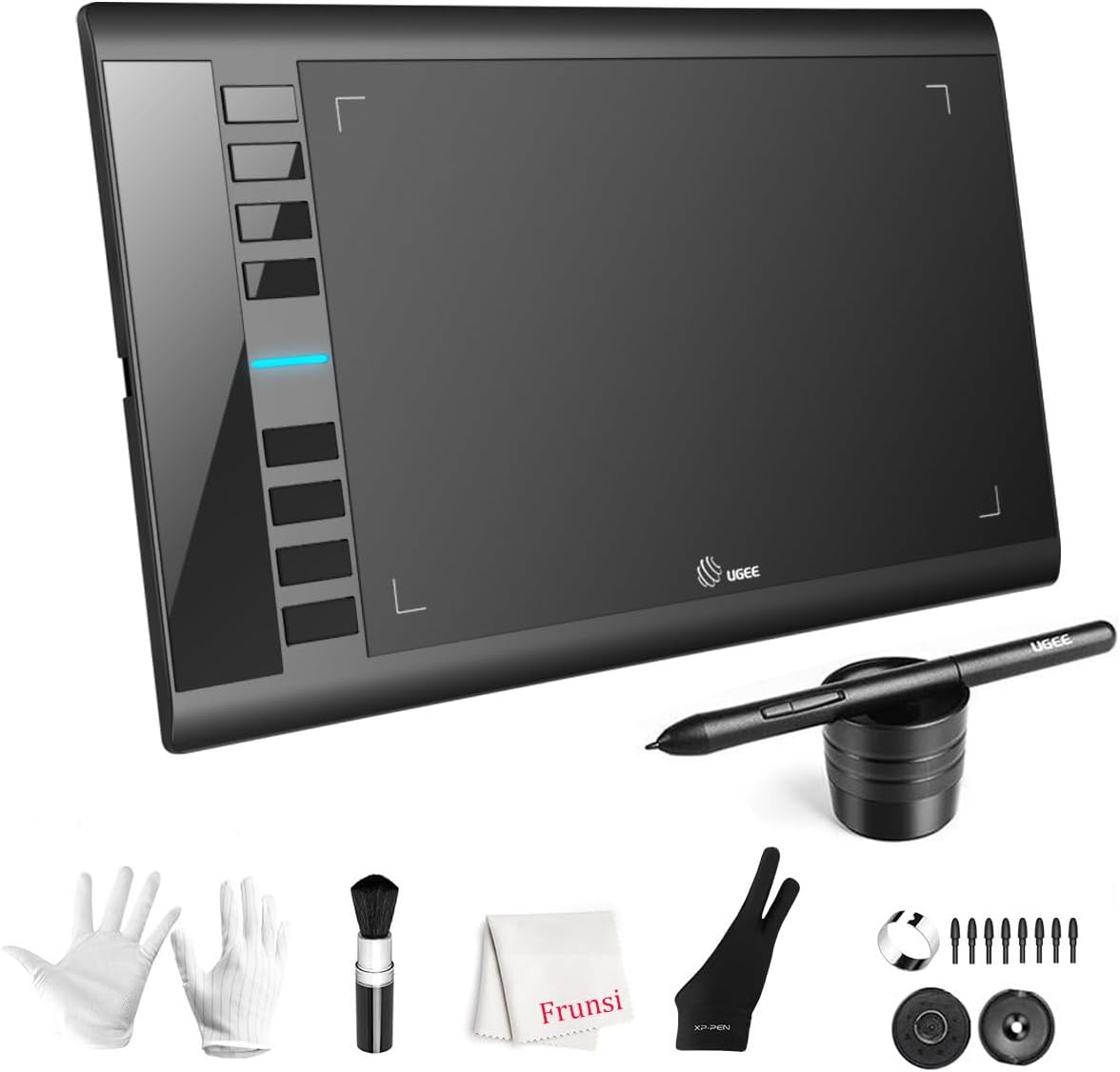
Our score: 8.8/10 iOur editorial score (1 to 10), based on listing specs, features and how well each pick fits its use case. It is not an Amazon customer rating.
10 x 6 inch area 16,384 pressure levels 8 express keys Passive stylus, no battery
The UGEE M708 is the strongest match for a budget focused search that still wants a generous drawing area. Its listing gives a 10 x 6 inch active surface with a papery texture, which many beginners find easier to control than a smaller pad. The title and bullets describe a passive stylus, so the pen works without batteries. The listing calls this stylus technology more affordable, which places the M708 near the top of this guide for buyers who want the most surface for their money.
The listing mentions a pen holder and extra pen tips, which helps keep the tablet tidy on a desk. The stylus offers 16,384 pressure levels, so the line can range from fine to bold depending on how hard the pen is pressed. Eight customizable express keys sit on the side, and the listing suggests them for eraser, zoom in and out, scrolling and undo. The tablet uses a USB to USB C connection with adapters, and its driver works with creative software such as Photoshop.
This model suits a broad range of people. The listing says it is ambidextrous, with express keys and a pen holder that work for both left and right handed users. Teens who want to draw manga or comic panels, or parents who want a simple first tablet for a child who already sketches, will find the surface useful. Setup is straightforward, and the listing names support for Windows 7 through 11, several Mac versions, Android 10 or later, Chrome OS and Linux, which covers most home computers.
Keep a few cautions in mind. Like most pen tablets, the UGEE M708 has no screen of its own, so the drawing appears on the connected device, and learners need a short adjustment period. Store extra pen tips where small children cannot reach them. Check that your computer matches the listed operating system versions before ordering, and keep the cable clear of chairs so the tablet does not shift while you draw. A sleeve helps protect the active surface during travel.
3. HUION H420X: Best Pocket Size Pick

Our score: 8.8/10 iOur editorial score (1 to 10), based on listing specs, features and how well each pick fits its use case. It is not an Amazon customer rating.
4.17 x 2.6 inch area 8192 pressure levels 7 mm thin 167 g body
The HUION H420X is the smallest pen tablet in this guide, and that is its main appeal. The listing gives a 4.17 x 2.6 inch active area and a body that measures 6.77 x 4.3 inches, with a thickness of 7 mm and a weight of 167 g. Those figures make it a good fit for a crowded desk, a backpack pocket or a trip where space is limited. For a young artist who wants a first tablet that is easy to carry, the size is the first thing to appreciate.
The pen is battery free, and the listing claims 8192 levels of pressure with a report rate of 300 PPS, which it says makes lines quicker and smoother. The stylus has two customizable side buttons that can switch functions while you work. The listing says there is no driver to install and describes the device as plug and play, which keeps the first session short. It also supports handwriting, annotation and note taking, so the tablet can double as a simple tool for school notes.
This tablet suits younger teens and adults who want to practice sketches, handwriting or quick studies and do not need a large surface. A small drawing area limits detailed work, but it can teach control because each stroke covers less ground. Compatibility is wide: the listing names Windows 7 or later, Mac OS 10.12 or later and Android 6.0 or later, along with software such as Adobe Photoshop, Manga Studio and Sketchbook, and video and office apps such as Teams, Word and OneNote.
Plan around the size. Many artists find a larger surface easier for full arm movement, so this model works best for small sketches and writing. Keep the cable and pen together in a pouch, because the thin body is easy to lose in a bag. If you plan to draw for long periods, add a stand or a folder to keep a comfortable angle. A pen tablet needs a computer or supported device, so the drawing appears on that screen, not on the tablet itself.
4. HUION HS611: Best for Shortcut Keys

Our score: 9.0/10 iOur editorial score (1 to 10), based on listing specs, features and how well each pick fits its use case. It is not an Amazon customer rating.
8 multimedia keys 10 press keys 8192 pressure levels 6.35 x 10.17 inch area
The HUION HS611 is the best match for a learner who wants many controls on the tablet itself. The listing calls it the first pen tablet equipped with multimedia keys, and it adds ten programmable press keys plus a touch strip. The listing gives a 6.35 x 10.17 inch working area, a comfortable size for a desk, with a body that is 7.3 mm thick and weighs 550 g. That mix of surface and controls explains its place in this guide.
The eight multimedia keys sit on the upper side and cover volume, media playback and switching between software. The ten programmable press keys can be customized in the HUION driver and the HUION Sketch app, and the touch strip can zoom the canvas. The pen is a battery free PW500 model with 8192 pressure levels, a 266 PPS report rate and tilt support up to 60 degrees. The Type C plug works in either direction, which the listing presents as a convenience.
This tablet suits students and young artists who spend long sessions in a drawing app and like having controls within reach. The media keys help when a learner watches a tutorial while drawing, and the press keys can hold brush or layer shortcuts. The working area is bigger than a pocket model, so the tablet also works for note taking, lessons and online study. Beginners should expect a short learning period, since extra buttons add choices that need a few practice sessions to feel natural.
The listing says the tablet works with Android 6.0 or above, Windows 7 or above and macOS 10.12 or above, and it notes that only phones and tablets running Android 6.0 or newer are supported. It also says the cursor will not show on some Samsung devices, except Note series models. Check these details before you buy, keep the pen tips in a safe place, and expect a heavier body than a slim pocket tablet because the listing gives a 550 g weight.
5. Wacom Intuos Small Wired: Best Software Bundle
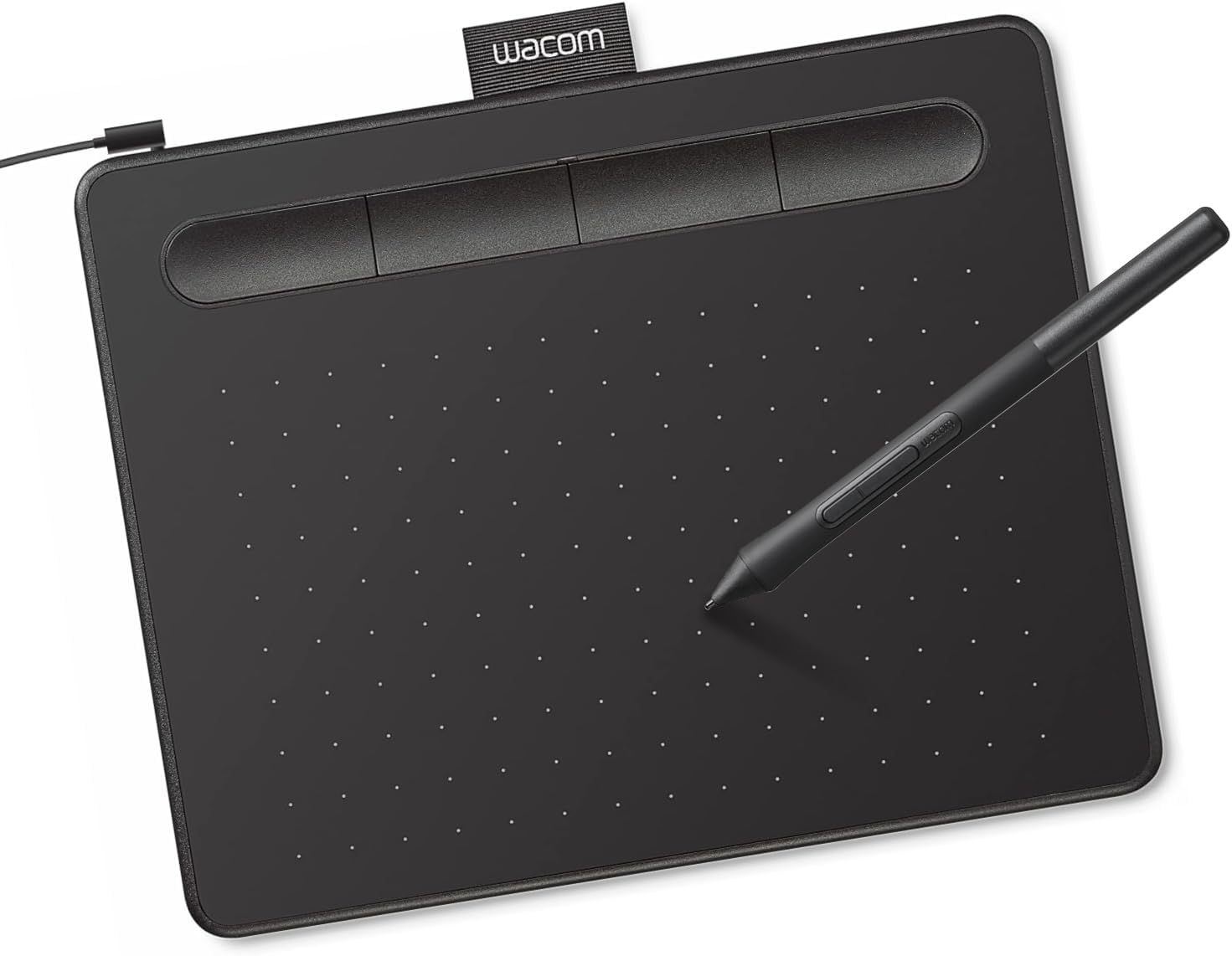
Our score: 9.2/10 iOur editorial score (1 to 10), based on listing specs, features and how well each pick fits its use case. It is not an Amazon customer rating.
Battery free EMR pen Software included Wired USB Works with any software
The Wacom Intuos Small is a name many families recognize when they start looking at drawing tablets. The listing presents it as a wired graphic drawing tablet that comes with a pen and software. Its battery free EMR technology is described as feeling like pen on paper, and the brand highlights control and precision as its main strengths. It earns a place in this guide because it covers the pen, the software and the training in one purchase.
The pen works without a battery, and the listing describes a surface that responds to pressure in any software program. The bundle includes software with each purchase, and the listing asks owners to register the tablet to gain access to creative software and Wacom online training. The listing says the tablet can be used for drawing, painting, editing photos and marking up documents. The tablet connects with a wired USB cable, which means fewer setup steps and no pairing process.
This model suits learners who want a dependable tool for school projects, digital illustration and photo editing. Teens who plan to take a design class or a digital art course will find the included training useful as a starting structure. Tweens can start with a few guided lessons and move toward independent projects. Because it is a wired tablet, it stays on the desk, which helps a student build a steady routine at one workstation.
Be aware of the trade offs. The tablet needs a computer and has no screen of its own, so the image shows on your monitor, and younger children will need a parent to set up the software and registration. Software access depends on registering the device, so keep the purchase details handy. The pen uses replacement tips, which are small parts, so store spares out of reach of children under three. Expect a learning period while you match the pen movements to the screen.
6. Wacom Intuos Medium: Best Wireless Option

Our score: 9.0/10 iOur editorial score (1 to 10), based on listing specs, features and how well each pick fits its use case. It is not an Amazon customer rating.
Bluetooth or USB Battery free EMR pen Software included Medium size
The Wacom Intuos Medium is the larger and wireless member of the Wacom family in this guide. The title names a Bluetooth graphic drawing tablet with a pen and software, and the listing emphasizes that it can connect wirelessly or by a USB A cable. That mix makes it a strong choice for a shared family room, a classroom corner or a learner who wants to move the setup between desk and sofa. It also carries the same battery free pen technology that Wacom uses across its Intuos line.
The pen is battery free and uses Wacom EMR technology, which the listing describes as a pen on paper feel. The tablet works with any software program the listing names, from drawing and painting to photo editing and marking up documents. Software and online training are included with registration, the same as the wired small model. The Bluetooth connection frees the cable, while the USB A option stays available if the wireless link is not convenient in a particular room.
This tablet suits teens who want a flexible setup and parents who share one device among siblings. A wireless connection suits a student who likes to draw on the sofa, at a kitchen table or in a classroom where cords are not welcome. The medium size gives more room for arm movement than a small tablet, which helps learners who want bigger strokes. Younger tweens can use it with a parent, and older teens can use it to build portfolio pieces with the included software.
Battery powered connections need attention. If the tablet runs on a rechargeable battery, keep it charged or connect it by USB when you plan a long session, and check that your computer supports Bluetooth before you buy. The listing says it works with the included software, but very old computers may not run every program. Store the pen tips safely, since they are small parts, and wipe the surface with a soft dry cloth rather than harsh cleaners.
7. RubensTab T11 Pro: Best Standalone Pick

Our score: 8.8/10 iOur editorial score (1 to 10), based on listing specs, features and how well each pick fits its use case. It is not an Amazon customer rating.
10.1 inch Full HD 5800 mAh battery No computer needed 12 month warranty
The RubensTab T11 Pro is a standalone drawing tablet, which means it does not need a computer to work. The listing describes a 10.1 inch Full HD IPS screen with a 1920 x 1200 resolution, a pressure sensitive pen and pre installed drawing apps. For a family that wants a simple device that can draw, sketch and take notes without a laptop, this model is one of the most direct options in the guide. That independence is what earns it a spot near the top.
The listing says the built in 5800 mAh battery supports up to 5 hours of continuous use, and it charges through USB C. The pen does not require a battery, and the listing says it offers adjustable pressure sensitivity for different strokes. Multi touch works on the screen, and an adjustable stand case helps with desktop or travel use. The listing also mentions Wi Fi compatibility, which matters for app downloads and updates.
This tablet suits tweens and teens who want their own drawing space and parents who want fewer cords. It can be used for drawing, note taking in class and brainstorming, since the listing mentions those uses directly. Beginners can explore the pre installed apps at their own pace, and the screen shows each stroke as it appears under the pen. A standalone device also needs clear limits on screen time, so a family routine works well with it.
The listing states certifications for GMS, FCC and CE, and it offers a 12 month warranty. Those details help buyers check the paperwork, but they do not replace adult supervision for small pens or charging cables. Keep the USB C cable away from young children, use the included case for protection, and review the warranty terms before purchase. Charging the battery on a regular schedule means the tablet is ready when a session starts.
8. PicassoTab A10: Best Standalone with Lessons

Our score: 8.8/10 iOur editorial score (1 to 10), based on listing specs, features and how well each pick fits its use case. It is not an Amazon customer rating.
10 inch laminated screen 4096 pressure levels 6GB RAM, 64GB storage Lifetime VIP tutorials
The PicassoTab A10 is another standalone choice, but it leans toward learning. Its listing describes a 10 inch tablet that runs drawing, painting and animation apps directly on the device, with no computer needed. It arrives with five creative apps and upgrades that the listing names, including a lifetime VIP tutorials upgrade. That focus on lessons is why it sits in this guide beside the RubensTab, even though the two are built around different habits.
The screen has a laminated surface that the listing says reduces glare and parallax, which helps the pen feel closer to paper. The stylus has 4096 pressure levels for sketches and illustrations. Inside, the listing names an octa core processor, 6GB RAM and 64GB storage that can expand up to 1TB, which supports drawing apps and schoolwork. The listing also includes a premium case, a drawing glove, a universal power adapter and a pre installed screen protector.
This tablet suits beginners who want guided steps and a device that can handle homework as well as art. The listing describes step by step lessons, guided practice and beginner friendly exercises in the lifetime VIP upgrade, and the Xplore app offers drawing guides. Tweens can follow a lesson on their own, while parents can check progress by watching the work come together on the screen. Because it is a full tablet, it also suits streaming and everyday multitasking, which needs clear rules at home.
A few cautions apply. The listing sets a 10 inch screen, so detailed work may feel tight compared with a larger tablet. As a standalone device, it needs regular charging and clear screen time limits. Keep the stylus and any small accessories away from children under three, and use the included case to protect the screen during travel. Read the app upgrade terms on the listing, since the lifetime features are described there in more detail.
How to Choose the Best Budget Drawing Tablets
What makes a budget drawing tablet worth it
A budget drawing tablet earns its place when it gives a beginner the basics that matter for real drawing: a pen that responds to pressure, a surface large enough for the whole hand to move, and software that works with the drawing app a learner will actually open. Many buyers focus only on the lowest number on the page, but a tool that frustrates a young artist ends up in a drawer. Look for a clear connection method and a pen that needs no constant replacement.
The listings in this guide describe tablets that work with computers, phones and in some cases on their own. Value comes from matching the device to the way the learner plans to draw, rather than from a single headline feature. A tablet used every week for two years gives more creative return than a more expensive model that sits unopened, so think about routine first and extras second.
Pen tablet or standalone screen
A pen tablet is a surface that connects to a computer or phone, and the drawing appears on that device. It is usually the simplest route to professional software, and most listings in this guide are built this way. A standalone tablet has its own screen and battery, so it needs no computer, which suits a family that wants one device for drawing and notes.
Choosing between the two comes down to where the learner will draw. Pen tablets reward a desk setup with a computer, while standalone screens favor sofa sessions and travel. Pen tablets can feel strange at first because the eyes look at the monitor while the hand moves on the tablet, so a few practice sessions are normal. Standalone screens show the line right under the pen, which many younger learners find more natural.
Age and skill fit for beginners, tweens and teens
Age matters less than habit. A confident eight year old may handle a pen tablet well, while a teen new to art may prefer a screen that shows the line right under the pen. For tweens, a simple surface with a few shortcut keys keeps attention on drawing. For teens, larger surfaces and software training can support portfolio work and school projects.
Parents should also think about maturity with electronics. Standalone tablets include charging cables and screens that can pull attention away from drawing, so family limits help. Pen tablets need a computer, which usually means a shared space with a grown up nearby. Gift buyers can match the device to a child’s current interests rather than guessing what the child will enjoy later.
Surface size and pen feel
Surface size changes how a drawing feels. A small surface, such as the 4.17 x 2.6 inch area in the HUION H420X listing, keeps movements short and is handy for quick sketches and notes. A 10 x 6 inch surface, as listed by the XPPen Deco 01 V3 and UGEE M708, allows wider strokes and more natural arm motion. Wider surfaces also let the wrist rest on the desk, which many learners find more comfortable during a long session.
Pen feel is shaped by pressure levels and tilt. The listings name 8192 and 16,384 pressure levels, and more levels can produce a smoother gradient for shading. Surface texture matters too: some listings describe a papery feel, which many artists prefer for pencil like strokes. Try to match the surface size to the learner’s space and to the kind of drawing they plan to do most. Pen feel also depends on the pen tip, so a learner who presses hard may want spare tips and a plan for replacing them.
Connection types: USB, Bluetooth and Android
Connection type decides how much setup happens before the first drawing. USB cables, such as the USB to USB C and USB C to USB C links in several listings, offer the most stable connection with no pairing. Bluetooth models, like the Wacom Intuos Medium in this guide, free the cable but depend on a charged battery and a compatible computer. Wired setups also make troubleshooting simpler, because a loose cable is usually the first thing to check.
Android compatibility is worth checking carefully. The XPPen listing requires Android 10.0 or above, the HUION H420X lists Android 6.0 or later, and the HS611 notes that only phones and tablets with Android 6.0 or newer are supported. Confirm the version on your device before ordering, because an older phone may not work with the drawing area at all. Read the compatibility notes slowly, since a single version number can decide whether a phone works.
Shortcut keys and programmable buttons
Shortcut keys can speed up work, but more buttons are not always better. The XPPen Deco 01 V3 offers eight customizable keys that can be set for either hand. The HUION HS611 combines eight multimedia keys, ten programmable press keys and a touch strip, which gives a learner many controls in one place. Each extra key adds one more thing to learn, so choose the layout that matches your daily drawing habits.
Start with three or four shortcuts: undo, zoom, eraser and brush size cover most early needs. A cluttered set of keys can distract a beginner who is still learning the pen. Practice one new shortcut each week, and write the list on a card beside the tablet so it becomes a habit rather than a chore. Keep the most common commands closest to the thumb, where they can be pressed without looking away from the screen.
Safety labels, small parts and supervision
Labels help, but they do not replace supervision. Drawing tablets may carry certifications such as CE, FCC or GMS, which the listings name for electrical and radio rules rather than for toys. Toy standards such as ASTM D4236, EN71 and CPSIA usually apply to toys and art materials, so check them on any markers, paper or craft items sold alongside a tablet. Read what each listing states and do not assume more than that.
Small parts are the main safety point for pen tablets and standalone screens alike. Replacement pen tips, USB adapters and styluses can be swallowed by children under three, so store them in a box with a lid. Chargers and cables can be a trip or tangle risk, and a standalone screen may warm up during long sessions. An adult should set up the device, keep chargers away from water and check the box for loose parts.
Storage, travel and desk space
Desk space decides more than most buyers expect. A pen tablet needs a computer in front of it, and the drawing hand needs room to move freely. Measure the spot before choosing a surface, and leave room for the cable. A slim tablet like the HUION H420X, at 7 mm thick, can slide into a school bag or a drawer. A cable wrapped loosely around the case helps prevent kinks and keeps the desk clear for drawing.
For travel, look at the protective case, the cable length and the weight. The RubensTab T11 Pro listing includes an adjustable stand case, and the PicassoTab A10 bonus items include a premium tablet case. A hard case or a sleeve for the pen and spare tips keeps everything together so the drawing area stays clear of crumbs and dust. Carry the pen in a separate pocket so the tip does not rub against the tablet surface during the trip.
Budget logic without chasing the lowest number
Budget logic means looking at what comes in the box and how long the device will serve. A battery free pen avoids recurring battery purchases, and a tablet that includes software can replace a separate program purchase. Extra accessories such as a case, a glove or a power adapter can be real value when they are part of the listing. Read each listing for those inclusions before comparing the rest.
Think about the cost of mistakes too. A surface that is too small may slow down a learner, and a device that needs a computer you do not own adds hidden expense. Prices change, so each link in this guide goes to the live listing. Compare the included items, the warranty and the connection needs before you decide which budget tablet is the best fit for your home.
Care, pen tips and longevity
A well cared for pen tablet can last for years. Clean the surface with a soft dry cloth, and avoid sprays that might seep into the edges. Keep the cable from bending sharply near the connector, which is where damage often starts. Store the pen in its holder when it is not in use, so the tip does not get bent or lost.
Pen tips wear down over time, so spares are worth keeping. Many pen tablets include a few extra tips, as the UGEE M708 listing mentions, and buying a replacement set later is usually simpler than replacing the whole tablet. For standalone screens, keep the battery charged on a schedule and install app updates when the device prompts you to do so.
A learning path after your first tablet
A simple path works well for most learners. Start with lines and shapes for a week, then move to shading with a soft brush. After that, try layers and selections in a drawing app, which many listings name as compatible software. Keep sessions short, about fifteen to thirty minutes, and save a few finished drawings so progress is easy to see.
Once a learner feels comfortable, the upgrade path depends on the goal. A hobbyist may stay with the same tablet for years, while a teen preparing for a design course may look for a larger surface or a pen display. Tutorials in the PicassoTab listing and the training offered with the Wacom Intuos can help students bridge the gap between basics and personal style.
Common mistakes and gift tips
Common mistakes include buying a standalone screen when a family already has a working computer, or choosing a tiny surface for a child who draws large shapes. Another frequent error is skipping the operating system list. Check the compatible systems before checkout, and make sure the software will run on the computer at home. Reading the full listing before ordering can prevent a return and a second wait for the right device.
For gifts, pair the tablet with a few sheets of paper or a sketchbook so the learner has a simple practice route. Add a note about setup and supervision for younger recipients. If the gift is for a teen, choose a model with included software or training, which gives a clear first project. A gift receipt is useful because compatibility is easy to check only after the box is opened. Buyers who give a tablet to a sibling should also plan who manages the charging, cleaning and storage.
Frequently Asked Questions
What is the best budget drawing tablet for beginners?
The XPPen Deco 01 V3 10×6 Drawing Tablet is the top pick here. Its battery free stylus, 16,384 pressure levels and eight shortcut keys make it a strong first pen tablet. The UGEE M708 is a close alternative for a budget focused buyer who wants a similar surface size.
Do I need a computer to use these tablets?
Pen tablets such as the XPPen, UGEE, HUION H420X, HS611 and Wacom Intuos models connect to a computer or a supported phone. The RubensTab T11 Pro and PicassoTab A10 are standalone tablets with their own screens, so they work without a computer.
Are battery free pens really battery free?
The listings describe the pens on the pen tablets as battery free, which means they need no charging of their own. The standalone tablets have built in batteries that need regular charging, so the battery free claim applies to the pen rather than the whole device.
What surface size should a child choose?
Children between six and twelve often do well with a surface around 10 x 6 inches, which gives room for bigger strokes. A smaller 4.17 x 2.6 inch surface suits quick sketches and travel. Choose the size that fits the desk space and the way the child moves the pen.
Are these tablets safe for young children?
Adult supervision matters with all of these products. Pen tips and small accessories are small parts, so keep them away from children under three. Standalone tablets need charging and screen time limits. Read the labels on each listing and set up the device with an adult before the child uses it.
Which tablet is best for teens who want software training?
The Wacom Intuos Small Wired is the clearest pick for that goal, since the listing says software and online training come with registration. A teen who wants a standalone device for school work may prefer the RubensTab T11 Pro or the PicassoTab A10.
Is Bluetooth better than a USB cable?
Bluetooth removes the cable and suits a sofa or a classroom, but it needs a charged battery and a compatible computer. A USB cable is more stable and avoids pairing. For most beginners working at a desk, a wired connection is simple and reliable.
Do these tablets work with Android phones?
Several do, but the versions vary. The XPPen listing says Android 10.0 or above, the HUION H420X lists Android 6.0 or later, and the HS611 lists Android 6.0 or above with some Samsung limits. Check your phone model and version before you order.
How long should a beginner practice each day?
Short, regular sessions work best. Fifteen to thirty minutes a day, with one new skill each week, builds steady progress without tiring the hand or the eyes. Keep a few finished drawings so the learner can see how far they have come.
What should I look for when comparing budget tablets?
Look at the surface size, pressure levels, connection type, included software, the compatibility list and the warranty. Read what each listing states and match those details to the learner’s age, space and goals. Prices change, so check the live listing for the current cost.
The Bottom Line
For most families, the XPPen Deco 01 V3 10×6 Drawing Tablet is the best starting point because it pairs a battery free stylus with a useful drawing area and eight shortcut keys. If you want a lower cost starting point with a similar surface, look at the UGEE M708. Standalone buyers should compare the RubensTab T11 Pro and PicassoTab A10 based on whether the screen or the built in lessons matter more.
Whatever you choose, check the live Amazon listing for current details, read the compatibility notes, and plan a short practice routine. A good budget drawing tablet is the one a learner uses every week.
Updated for the 2027 buying season. Amazon listings and availability change often, so check the product page for current details.



Write Your Review
No reviews yet. Be the first to share your experience!