

As an Amazon Associate we earn from qualifying purchases. If you buy through links on this page we may receive a commission at no extra cost to you. Product details come from Amazon listings and can change.
This guide covers the best battery free drawing tablets for beginners and young artists who want to start digital drawing without a pile of replacement batteries. The phrase battery free needs a clear reading. Most drawing tablets still plug into a computer, phone or tablet with a USB cable, so the battery free part mainly refers to the pen, which draws its power from the tablet through EMR technology. Pure non electronic boards, such as magnetic or doodle boards, were not in the product pool for this list, so every pick is a pen tablet.
Screen models with a built in display were left out, because a display needs its own power supply and more setup than a plain drawing surface. Each remaining product is a surface you draw on while watching a computer or device screen. The list covers wired, Bluetooth and mixed connection models, small and medium work areas, and layouts with eight or ten shortcut keys. Prices change often, so each product links to its live listing.
The guide is written for parents, gift buyers, teachers and tweens who are ready for their first digital art kit. Each product section explains what the listing says, what the tablet is built for and what to watch for. After the picks you will find a quick answer, takeaways, a note on how the list was built, a buying guide and a FAQ.
Key Takeaways
Best Battery Free Drawing Tablets at a Glance
| Product | Our score | |
|---|---|---|
| Wacom Intuos Small Wired Best Overall |
9.2 / 10 | Check Price |
| XPPen Deco 01 V3 10×6 Drawing Tablet Best for Beginners |
9.0 / 10 | Check Price |
| Wacom Intuos Small Bluetooth Best Wireless Option |
8.8 / 10 | Check Price |
| HUION H420X Graphics Tablet Best Slim and Light Pick |
8.8 / 10 | Check Price |
| HUION HS611 Drawing Tablet with 10 HotKeys Best Shortcut Key Layout |
8.8 / 10 | Check Price |
| HUION HS611 10×6 inch Drawing Tablet Best Media Key Layout |
9.0 / 10 | Check Price |
| Wacom Intuos Medium Best Larger Work Area |
9.0 / 10 | Check Price |
How We Chose the Best Battery Free Drawing Tablets
This is a research based guide, not a lab comparison, and it does not describe any drawing trials. Each product was assessed from its listing title and bullet points, including the pen technology, pressure sensitivity levels, connection type, working area, included software, shortcut keys and compatibility notes. Where a listing was thin, the guide speaks in general terms about the category instead of filling gaps with numbers the listing does not state.
Each pick carries an editorial score out of 10 on its card. That score reflects features, specs and how well the tablet fits its use case, such as a first desk setup, a school project or a travel sketchbook. The list balances the field with Wacom and HUION models, small and medium sizes, wired and wireless connections, and different shortcut layouts. The editorial score is a site opinion, separate from any store data.
In-Depth Reviews
1. Wacom Intuos Small Wired: Best Overall
Our score: 9.2/10 iOur editorial score (1 to 10), based on listing specs, features and how well each pick fits its use case. It is not an Amazon customer rating.
EMR battery-free pen Wired USB Software included Works with any software
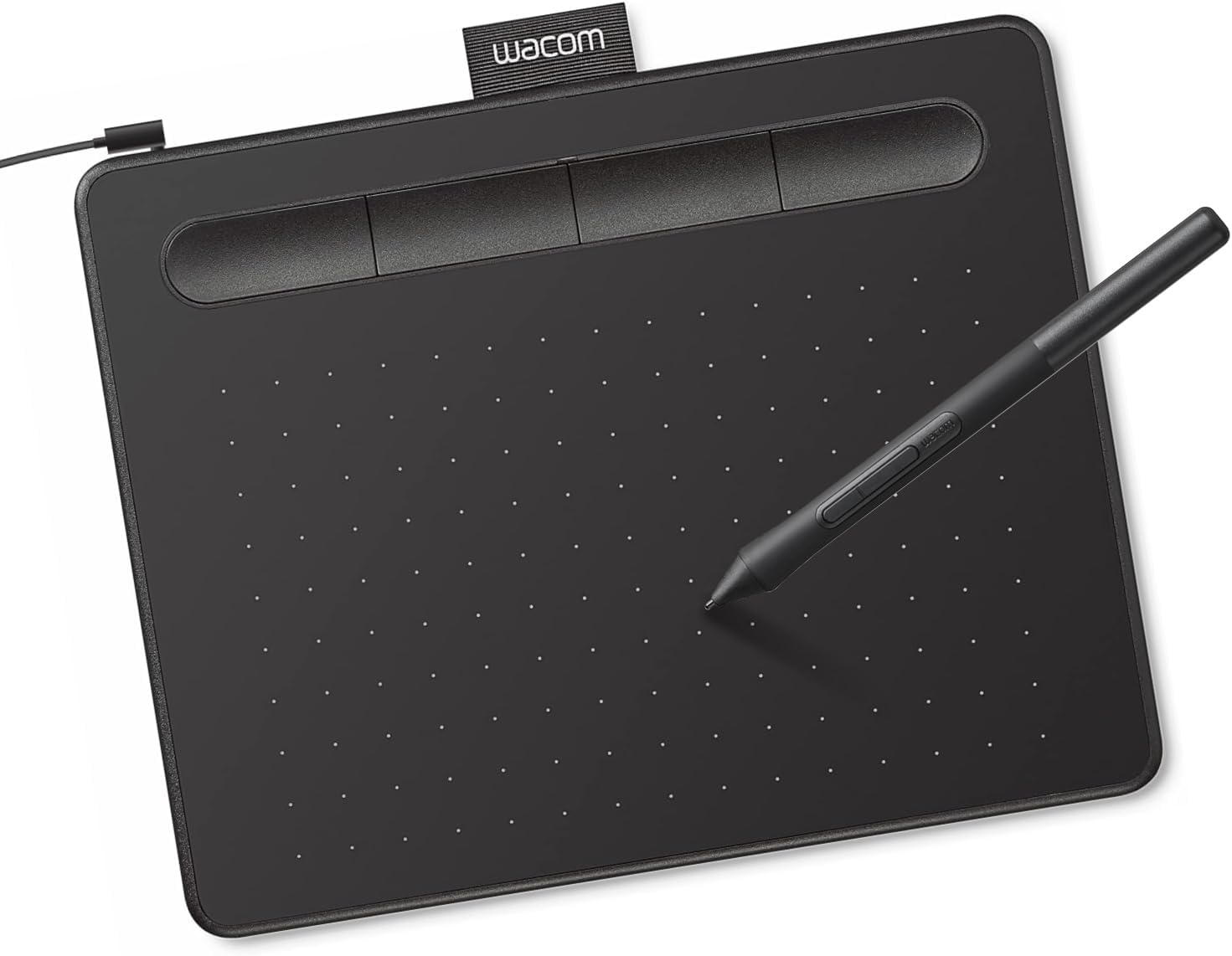
The Wacom Intuos Small Wired takes the top spot because its listing covers the core things a beginner needs: a pen that uses EMR battery free technology, software that comes with the purchase, and training resources from the brand. Wacom describes the tablet as a pen on paper feeling, and the listing highlights its use with drawing, painting and photo editing programs. For a first digital art setup, that all in one approach is the main reason it leads this list.
What is in the package is the tablet, the pen and access to the bundled software. The listing says the Intuos line can be used in any software program, which means a young artist can start with a free drawing app and move to a bigger program later without buying a new tablet. The pen does not need charging or a battery swap, so there is one less thing to track. The wired USB connection keeps the setup simple, although a cable does run from the tablet to the computer.
This model suits a beginner who wants a stable, familiar tablet from a long established brand. A teen who plans to take digital art more seriously can grow into the same workflow, and the training resources offer a structured route for learning shortcuts and pen settings. Parents and teachers will also find it easy to explain, because the pen behaves like a pencil on a surface while the drawing appears on the screen of the computer.
A few practical tips help. Route the USB cable along the back edge of the desk so it does not catch the pen hand, and set the tablet on a flat surface with enough room for a full arm sweep. Pen nibs wear down over time, so keep spares on hand if the package includes them. Because the tablet connects to a computer, an adult should help install the software and check that the drawing program suits the child’s age.
2. XPPen Deco 01 V3 10×6 Drawing Tablet: Best for Beginners

Our score: 9.0/10 iOur editorial score (1 to 10), based on listing specs, features and how well each pick fits its use case. It is not an Amazon customer rating.
16K pressure levels 8 shortcut keys 10 x 6.25 inch area 8 mm thin
The XPPen Deco 01 V3 10×6 is the pick for a beginner who wants a generous drawing space and plenty of shortcut keys at a practical size. The listing describes a battery free stylus with 16,384 levels of pressure sensitivity and up to 60 degrees of tilt, which the listing says gives smoother lines and shading. The drawing area measures 10 by 6.25 inches, so the surface feels roomy without taking over a small desk.
The tablet includes eight customizable shortcut keys that the listing says work for both right and left hand users. Those keys keep frequently used tools close, which helps a beginner focus on drawing rather than hunting through menus. The tablet is only 8 mm thin, so the listing describes it as easy to slide into a backpack for sketching or note taking on the go. Connection is USB-C to USB-C, with adapters for other USB C setups.
This model suits a young artist who has mostly drawn on paper and wants to add digital skills step by step. Its light weight and slim body make it a comfortable fit for a kitchen table or a bedroom desk. The listing puts the beginner experience at the center, so the set up is a good match for a first computer drawing course, a school project or a daily practice routine at home.
Practical tips are simple. For Android use, the listing recommends downloading the XPPen Tools app, which adapts the mapping to the phone screen. Check the drawing area against your monitor before you commit, because a 10 by 6.25 inch surface maps to the full screen and can feel large on a small laptop display. Let a child assign the shortcut keys to the tools they use most, and keep the cable tidy so it stays off the drawing surface.
3. Wacom Intuos Small Bluetooth: Best Wireless Option
Our score: 8.8/10 iOur editorial score (1 to 10), based on listing specs, features and how well each pick fits its use case. It is not an Amazon customer rating.
Bluetooth or USB-A EMR battery-free pen Software included Small desk size
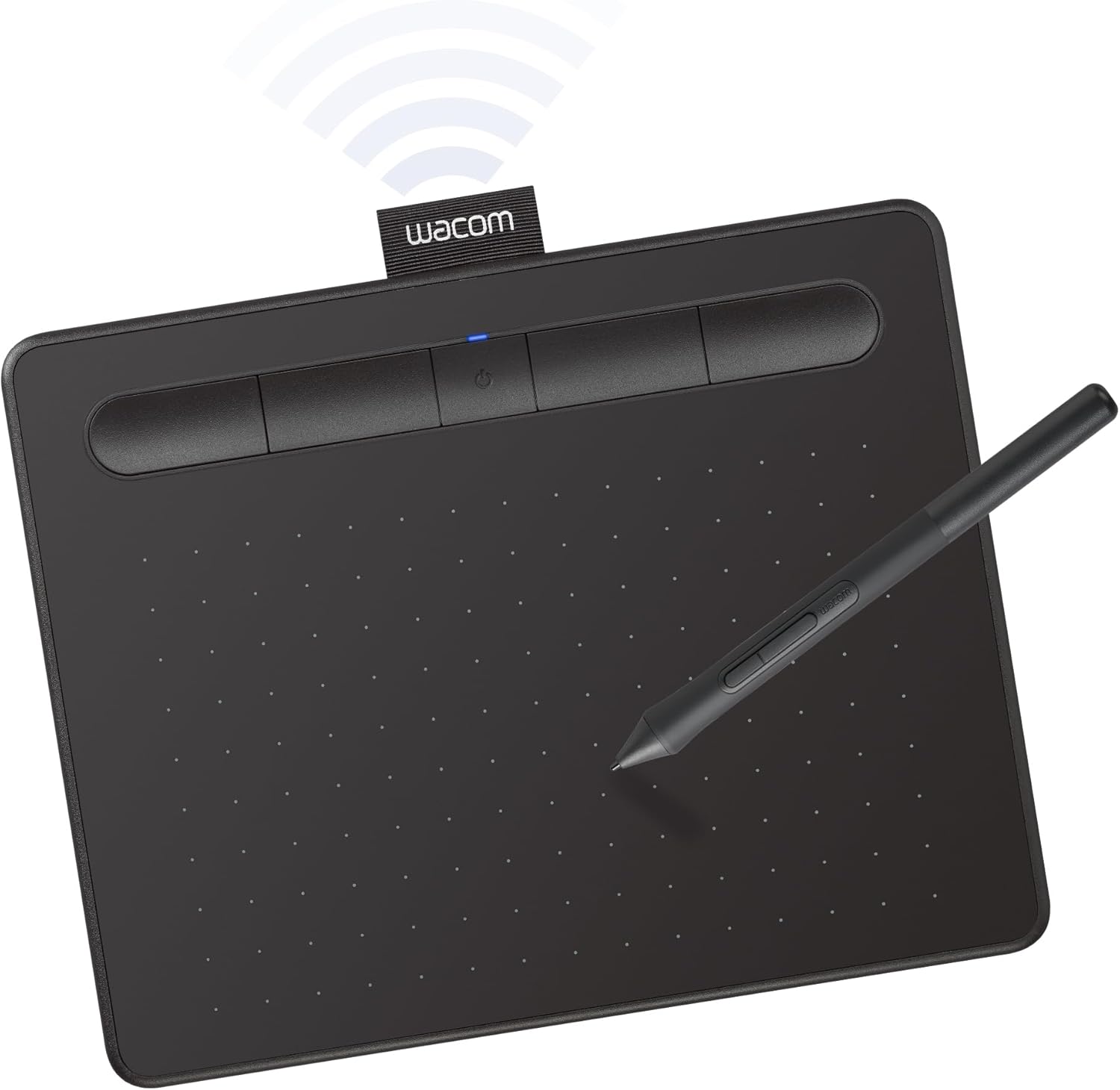
The Wacom Intuos Small Bluetooth belongs to the same family as the wired model, with one change that matters in many homes: it can connect wirelessly through Bluetooth or through a USB-A cable. The listing describes the EMR battery free pen as a pen on paper feeling, and it includes software and online training from Wacom. That combination makes it the best choice on this list for a child who wants to draw on the sofa or at a classroom table.
Wireless drawing removes one cable from the desk, which helps when a child sits at a lower table or likes to move around the room. The listing notes that the tablet works with any software program, so the same drawing app can run on a laptop or desktop. The USB-A cable remains a backup for moments when Bluetooth is not available, and the listing confirms both connection options. A small desk footprint keeps the tablet easy to store between sessions.
This model suits a tween or teen who likes to draw in different spots, and a beginner who wants flexibility without going up in size. The Wacom name and included training give a clear path for learning shortcuts and pen settings. The battery free pen means there is no pen charging to remember, which is a small but real help for a young artist who sketches every day. Teachers may also find it handy for short demonstrations at a shared table.
Some tips help with wireless use. Wireless links can weaken when a device sits far away or when other Bluetooth gear is busy nearby, so keep the tablet and computer in the same room. Check the listing for how the tablet itself is powered, since a Bluetooth model can differ from a wired one. Pair the device with an adult present, and keep the pen in a holder so it does not roll off the desk.
4. HUION H420X Graphics Tablet: Best Slim and Light Pick

Our score: 8.8/10 iOur editorial score (1 to 10), based on listing specs, features and how well each pick fits its use case. It is not an Amazon customer rating.
8192 pressure levels 300 PPS report rate 7 mm thick 167 g weight
The HUION H420X makes the case for a slim, light tablet that fits a backpack or a crowded desk. The listing says it is 7 mm thick and weighs 167 grams, with an active area of 4.17 by 2.6 inches. Its battery free stylus is described as an upgraded version with 8192 levels of pressure and a report rate of 300 PPS, which the listing says makes lines quicker and smoother.
The pen has two customizable side buttons, which the listing says can switch functions while drawing. The tablet is compatible with Windows 7 or later, Mac OS 10.12 or later and Android 6.0 or later. The listing also says no driver installation is needed, and it names popular programs such as Photoshop, Sketchbook and Clip Studio Paint as compatible. A plug and play approach keeps the first session short. The listing treats setup as quick, which suits a child who wants to start drawing soon after unboxing.
The small working area makes this model a good fit for a young artist who draws simple sketches, comics or handwritten notes. The listing also mentions online learning, note taking and signing documents, so it can double as a homework companion. A smaller tablet suits a child with small hands, although large drawings may feel cramped compared with a bigger model. Parents should expect short, focused sessions on a surface this compact, and the child may prefer to switch to a larger tablet once the basics feel comfortable.
Practical tips: a 4.17 by 2.6 inch area is compact, so a child will need to draw smaller and use the zoom controls in the software for detail work. Keep the side buttons set to simple functions at first, so the controls do not feel crowded. Because the listing names video calls and remote teaching tools, a tween can use it for class notes, but keep the cable tidy and the tablet on a stable surface.
5. HUION HS611 Drawing Tablet with 10 HotKeys: Best Shortcut Key Layout

Our score: 8.8/10 iOur editorial score (1 to 10), based on listing specs, features and how well each pick fits its use case. It is not an Amazon customer rating.
10 shortcut keys 8192 pressure levels PW500 battery-free pen 10.2 x 6.35 inch area
The HUION HS611 with 10 HotKeys puts its focus on shortcut keys. The listing says it has 10 responsive shortcut keys and a touch strip that can be programmed for zoom, brush size and other tasks. The listing presents this as a way to speed up a workflow. The Type C to USB connection works for right and left handed users, and the tablet uses a 7 mm ultra thin casing.
The pen is the PW500 battery free stylus. The listing describes 8192 levels of pressure, 60 degrees of tilt and a 266 PPS report rate. The working area is listed as 10.2 by 6.35 inches, a size that gives a child room to draw without a large footprint. The compatibility list covers Windows 7 or later, macOS 10.12 or later and Android 6.0 or later, and the listing notes that some Samsung Galaxy phones do not show the cursor.
This model suits a beginner who likes controls at their fingertips and does not want to reach for the keyboard in the middle of a drawing session. Older students who are learning software shortcuts can map them to the tablet and build muscle memory. The listing also highlights use with mainstream drawing and note software, which makes it a flexible choice for homework, illustration or early comic panels. Parents may also like that the layout keeps the pen hand free for drawing rather than for the keyboard.
Practical tips: pick a small set of ten functions before the first session, because too many mapped tools can confuse a beginner. Check your phone model before buying if Android use matters, since the listing flags the Samsung cursor issue. When shading, watch how much pressure the pen needs, and let a young artist practice light strokes before moving on to dark ones. Setting a short daily goal, such as one small drawing with the shortcut keys, helps the skills stick without tiring a young artist.
6. HUION HS611 10×6 inch Drawing Tablet: Best Media Key Layout

Our score: 9.0/10 iOur editorial score (1 to 10), based on listing specs, features and how well each pick fits its use case. It is not an Amazon customer rating.
8 multimedia keys 10 programmable keys 8192 pressure levels 7.3 mm thin
The HUION HS611 10×6 inch model is built around eight multimedia keys, which the listing says sit on the upper side of the tablet. These keys cover volume, previous, play or pause, next and switching between software, so a child who listens to music or video while drawing can control playback without leaving the canvas. The listing also includes 10 programmable press keys and a touch strip. Those extra keys give a beginner room to grow into a fuller setup over time.
The tablet measures 7.3 mm thick and weighs 550 grams, which the listing describes as thin and easy to carry. The active area is listed as 6.35 by 10.17 inches. The PW500 battery free stylus offers 266 PPS, 8192 pressure levels and plus or minus 60 degrees of tilt, which the listing says supports natural brush strokes. Android and PC support is listed for a broad set of devices. The bullets also note that the tablet is compatible with mainstream drawing software, so skills carry over to other programs.
This model suits a teen who wants drawing and media controls on one surface, such as a student who watches tutorial videos while sketching. The Android and PC support lets the tablet move between a computer and a phone or tablet. Parents should read the Samsung cursor note in the listing before choosing it for a shared family device, because that limit affects some phones. A quick check on the phone model before buying avoids disappointment on the first day.
Practical tips: media keys are handy but can be pressed by accident, so set the tablet on a steady desk and keep the cable path tidy. Use the touch strip for zoom rather than fine adjustments, because light touches can shift the view. With so many keys, take time to label the functions on a simple card so a younger artist knows what each key does. A printed card near the desk also helps a child remember the layout between sessions.
7. Wacom Intuos Medium: Best Larger Work Area

Our score: 9.0/10 iOur editorial score (1 to 10), based on listing specs, features and how well each pick fits its use case. It is not an Amazon customer rating.
Bluetooth or USB-A EMR battery-free pen Software included Medium desk size
The Wacom Intuos Medium Bluetooth is the larger sibling of the small Bluetooth model, and it takes the seventh spot because it offers more room to draw. The listing presents it as a Bluetooth graphics tablet with the same EMR battery free pen technology and the same bundled software and training. For a student who wants bigger pictures, full arm sketches or long projects, the extra surface is the main reason to choose it.
The listing says the tablet connects wirelessly through Bluetooth or directly with a USB-A cable, which gives a child a flexible way to draw from a desk, a sofa or a classroom table. The description also says the tablet can be used in any software program, so drawing skills carry over to other tools. The bullet points do not state an exact active area, so buyers should check the specs on the live listing before deciding.
This model suits an older beginner or a tween with a regular drawing space at home or in a classroom. It can serve as a shared family tablet because the Wacom line is widely known and the pen does not need charging. The training resources are a helpful route for learning how pen pressure and shortcuts work across larger drawings. Those lessons carry over to other tablets, so the time spent learning is not wasted if the child changes models later.
Practical tips: a larger tablet takes more desk space and will not fit in a backpack, so plan a permanent spot for it. Keep the USB-A cable handy as a backup if Bluetooth pairing fails in a busy room. Use the included software to set the pen buttons early, and let a child practice long, smooth strokes before moving on to detailed work. Short warm up strokes at the start of each session help a young artist settle into the larger surface.
How to Choose the Best Battery Free Drawing Tablets
What makes a drawing tablet battery free
The battery free claim usually belongs to the pen. An EMR pen receives power from the tablet’s sensor field when it is held close, so it has no internal battery to charge or replace. That is why the Wacom and HUION listings in this guide describe their styluses as battery free. The tablet itself still needs a connection to a computer or device, and some models also need power from a USB cable.
When you shop, read the listing with that split in mind. Look for the words battery free or battery-free next to the stylus, then check how the tablet connects. A wired model needs a cable, a Bluetooth model may need power for the tablet itself, and a screen model adds its own display power draw. Knowing which part is battery free helps you avoid surprises at the first drawing session.
Pen pressure levels and tilt explained
Pressure sensitivity describes how many steps the tablet can read between a light touch and a firm press. Listings in this guide show figures such as 8192 and 16,384 levels. More levels can give smoother gradients, but a child may not notice the difference at first. Focus on whether the pen feels natural and whether the software reads pressure well in the chosen drawing program.
Tilt is the angle of the pen against the surface. The listings mention up to 60 degrees of tilt on several pens, which lets a young artist shade with the side of the nib. Report rate, given in PPS, describes how often the pen position is sent to the computer. The listings name 266 and 300 PPS, and these figures help explain why a line feels responsive.
Age and skill fit for beginners
Most of the tablets here suit a beginner aged about 8 and up, provided an adult helps with setup. Younger children can use them with supervision, but they may find a small surface and a computer screen hard to coordinate at first. A tween or teen who already draws on paper usually adjusts faster, because the pen behaves much like a pencil.
Think about skill before size. A child who is just learning to draw should start with a model that has few shortcut keys and a simple pen. An older student who wants to learn software tools may benefit from ten keys and a touch strip. Matching the tablet to the learning stage keeps the first months fun instead of frustrating. Confidence grows fastest when the first projects match the child’s interests, such as animals, comics or fantasy scenes.
Wired, Bluetooth and mixed connections
Wired tablets are simple and predictable. A single USB cable connects the surface to the computer, and nothing needs pairing. The downside is the cable itself, which can pull on the desk or catch a sleeve. Wired models suit a fixed desk where the computer stays put. A wired tablet also avoids battery questions entirely, which can make it an easier first purchase for a family that wants fewer things to manage.
Bluetooth models add freedom, and some also keep a USB-A cable as a backup. Wireless use can be affected by distance, walls and other devices, so check the connection in the room where drawing actually happens. Ask whether the tablet itself is charged or powered, because that answer changes the maintenance routine. If a child moves between a bedroom and a classroom, a Bluetooth model can be more convenient, provided the pairing steps are learned at home first.
Size, desk space and storage
A small tablet fits a crowded desk, a backpack and a travel bag. Its drawing area is smaller, so the child will draw with a smaller hand movement and may need to zoom in the software for detail work. Small sizes are a strong choice for note taking, quick sketches and early practice. They also fit a lap or a narrow shelf, which helps when space at home is limited.
Medium and larger tablets give more room for full arm strokes and bigger pages. They take up more desk space and need a permanent spot. Plan storage in advance: a flat drawer or a shelf with a padded sleeve protects the surface and keeps the pen and cable together, which makes the next session easier to start. Keeping the surface clear of heavy books also prevents dents and keeps the cable from kinking.
Shortcut keys and touch strips
Shortcut keys let a young artist trigger common tools without reaching for the keyboard. Eight or ten keys are common on the models in this list. Each key can usually be mapped to undo, zoom, brush size or a layer function, depending on the drawing program. Start with two or three keys, then add more as the child learns the software.
A touch strip is a long, sensitive bar that can be set to zoom, scroll or adjust brush size. It is useful for quick changes, but a light touch can move the canvas by accident. Set the strip to a single function and practice it slowly, so the child learns the feel before relying on it during a project. A quick look at the settings page of the software helps a parent or teacher set the strip to match the child’s favorite tool.
Safety, cables and supervision
Drawing tablets are generally low risk, but cables and small parts still deserve attention. A USB cable can tangle around a child’s neck or pull a heavy object off a table, so route it along a desk edge and keep loops short. Pen nibs and replacement parts can be small, so keep them away from toddlers and store spares in a labeled box.
Adult supervision matters most during setup. An adult should install the software, check the age range listed for the drawing program and confirm that any online features are set up safely. Parents of younger users may prefer to keep the tablet in a shared room while the child draws, which also makes it easier to help with settings. Keeping the screen visible from the adult’s chair is a simple habit that makes supervision easy without hovering.
Budget logic without chasing prices
A budget decision works best when you compare what each tablet is built for. A simple wired model may be enough for a first year of practice, while a Bluetooth model or a larger surface costs more because of added features and space. Think about how often the tablet will be used, then choose the lowest feature set that still meets that need.
Avoid buying extra features that a child will not use for months. Shortcut key counts, media keys and wireless connections are useful for some learners and distracting for others. Check the live listing for the current price and compare the included items, because a bundle with software and training can add real value over a bare tablet. A spare nib set can matter more than an extra shortcut key, so check what is included before you buy.
Care, pen nibs and longevity
A drawing tablet lasts longest when it is kept clean and stored flat. Wipe the surface with a soft dry cloth, and avoid strong cleaners that can damage the coating. Keep the pen in its holder or a tray, because a dropped pen may need a replacement nib or may stop reading pressure correctly. Wipe the pen grip after long sessions so oily fingerprints do not build up on the barrel.
Pen nibs wear down with use, so keep spares on hand if the package includes them. A gentle touch extends nib life, and a child who presses hard will wear them faster. Store the cable without sharp bends, and check the connector for bent pins before each session. Small habits prevent most problems. Teaching a child these routines early builds good habits for every drawing tool they use later.
A learning path for new digital artists
A good path starts with basic strokes and simple shapes. Spend the first week drawing lines of different weights, circles and soft shading with the pen. Then move to color, layers and shortcut keys. Short sessions of twenty to thirty minutes work better than long ones for most young beginners. Keep the first lessons playful, with silly shapes and quick doodles, so the child associates the tablet with fun.
After the basics, pick a small project such as a comic strip, a poster or a character sheet. Projects give the child a reason to use new tools. The training resources offered by some brands can help with settings, and a parent can review finished work together to celebrate progress and suggest one new skill at a time. Keep a simple folder of finished pieces so progress is easy to see across months.
Common mistakes to avoid
The most common mistake is buying the largest tablet without checking the desk space. A big surface can feel awkward in a small room, and it may not fit in a bag for classes. Measure the spot first, then match the size to the place where drawing will happen. A tape outline on the desk shows the real footprint before you order, and it helps a child keep the work area consistent.
Another mistake is mapping too many shortcut keys on day one. A beginner may forget which key does what and stop using the tablet. Start with a few keys, label them, and add more after the child is comfortable. Also remember to check the computer software requirements before you buy, so the drawing program runs well on your device. Older computers may struggle with heavy brush engines, so check the minimum requirements in the software listing before the first session.
Frequently Asked Questions
Are these drawing tablets really battery free?
The pen is battery free in every listing used here. The tablet itself still connects to a computer, phone or tablet, and some models need power from a USB cable or internal source. Read the listing for how the tablet is powered before you buy.
Do I need a computer to use these tablets?
Most of them need a computer, and some work with an Android phone or tablet. Compatibility lists in each listing name the supported operating systems. Check that your device is on the list, and read the note about Android or Samsung use if you plan to draw on a phone.
What is the difference between wired and Bluetooth models?
Wired models use a USB cable and need no pairing. Bluetooth models can connect without a cable and often keep a USB backup. Wireless use can be affected by distance and other devices, so choose wired if the desk is fixed and the setup must stay simple.
Which tablet suits an 8 year old beginner?
The XPPen Deco 01 V3 and the Wacom Intuos Small Wired are sensible starting points. Both have a simple setup and a battery free pen. An adult should install the software and help set the shortcut keys on the first day.
Does pressure sensitivity matter for kids?
It matters once a child starts shading and wants lines to change with pressure. Many listings here show 8192 or 16,384 levels, which is more than enough for a beginner. Focus on how the pen feels and how well the drawing program reads pressure.
Why were screen tablets left out?
Screen tablets show the drawing on a built in display and need their own power and setup. This guide focuses on pen tablets that use a computer screen. The choice keeps the list consistent and helps you compare the pen and surface details fairly.
Are these tablets safe for kids?
They are generally low risk when used with an adult nearby. Keep cables routed away from the neck, store pen nibs and small parts out of reach of toddlers, and make sure any online features are set up safely. Supervision is most important during setup.
How big should the drawing area be?
A small area of about 4 by 2.6 inches suits notes and quick sketches. Areas near 10 by 6 inches suit most beginners. Larger surfaces help full arm drawing but need more desk space. Match the size to the room and the kind of drawing your child enjoys.
Can a phone be used with these tablets?
Some models list Android support through a cable or adapter, and some list phone compatibility in the bullets. Check the Android version and the phone model. The Samsung cursor limit appears in several listings, so confirm your phone before buying.
How can I make the pen last longer?
Use a light touch, store the pen in its holder, and keep spare nibs ready if the package includes them. Replace the nib when lines feel uneven. Clean the surface with a soft dry cloth and avoid strong cleaners that could damage the coating.
The Bottom Line
The Wacom Intuos Small Wired is the top pick for most families. It combines an EMR battery free pen, software that comes with the purchase and training resources in one simple wired package. For a child who wants to start with a trusted brand and grow into the same workflow, it is the clearest first choice on this list.
If wireless drawing matters more, the Wacom Intuos Small Bluetooth is the strongest alternative. Check the live listing for current prices and availability before you buy, and make sure the device you plan to use is on the compatibility list.
Updated for the 2027 buying season. Amazon listings and availability change often, so check the product page for current details.








Write Your Review
No reviews yet. Be the first to share your experience!