

As an Amazon Associate we earn from qualifying purchases. If you buy through links on this page we may receive a commission at no extra cost to you. Product details come from Amazon listings and can change.
This guide to the best beginner drawing tablets is built for new artists, kids, teens, and the parents or gift buyers who support them. It covers eight picks that range from wired pen tablets that need a computer to standalone devices with their own screens and apps. Each entry explains what the listing says, who the model suits, and where a beginner may need extra patience before the first month feels comfortable.
Prices change often, so this guide does not quote them. Every pick links to its live Amazon listing, where you can confirm the current price, bundle contents, and shipping details before buying. Read the buying guide further down to understand pen pressure, shortcut keys, screen size, and why some learners start better with a pen pad while others prefer a standalone tablet.
A good first tablet should feel easy to set up, respond well to light pressure, and fit the room where it will live. Think about the learner’s age, how much they already enjoy drawing, and whether the family owns a computer that can run the software. Those three answers narrow the field quickly and point toward the right style of device.
Key Takeaways
Best Beginner Drawing Tablets at a Glance
| Product | Our score | |
|---|---|---|
| Wacom Intuos Small Best Overall |
9.2 / 10 | Check Price |
| XPPen Deco 01 V3 10×6 Drawing Tablet Best Starter Pen Tablet |
9.0 / 10 | Check Price |
| PicassoTab 10″ Standalone Drawing Tablet Best Standalone with Lessons |
8.8 / 10 | Check Price |
| HUION HS611 10×6 inch Drawing Tablet 8192 Pen Pressure Best for Shortcut Keys |
9.0 / 10 | Check Price |
| Wacom Intuos Medium Best Wireless Option |
9.0 / 10 | Check Price |
| RubensTab T11 Pro standalone Drawing Tablet Best Portable Screen |
8.8 / 10 | Check Price |
| RubensTab T12 Standalone Drawing Tablet Best Larger Screen |
9.0 / 10 | Check Price |
| T8 Standalone Drawing Tablet with Screen Best Gift Pick |
9.0 / 10 | Check Price |
How We Chose the Best Beginner Drawing Tablets
This is a research based guide, not a lab comparison. Each pick was checked against its listing title, bullet points, and the specs the listing states, including pen levels, screen or work area size, connection type, battery claims, bundled apps, and any safety or certification marks. We did not run side by side lab measurements, and we did not assume features that a listing leaves out.
Every pick also carries an editorial score out of 10. That number reflects features, specs, and how well the model fits a beginner’s use case, and it is our own editorial judgment rather than a shopper figure. The list balances wired pen tablets, a wireless option, standalone devices, and a larger screen so that families with different rooms and needs can find a good match. Where a listing mentions a certification such as GMS, FCC, CE, or UKCA, the guide notes it.
In-Depth Reviews
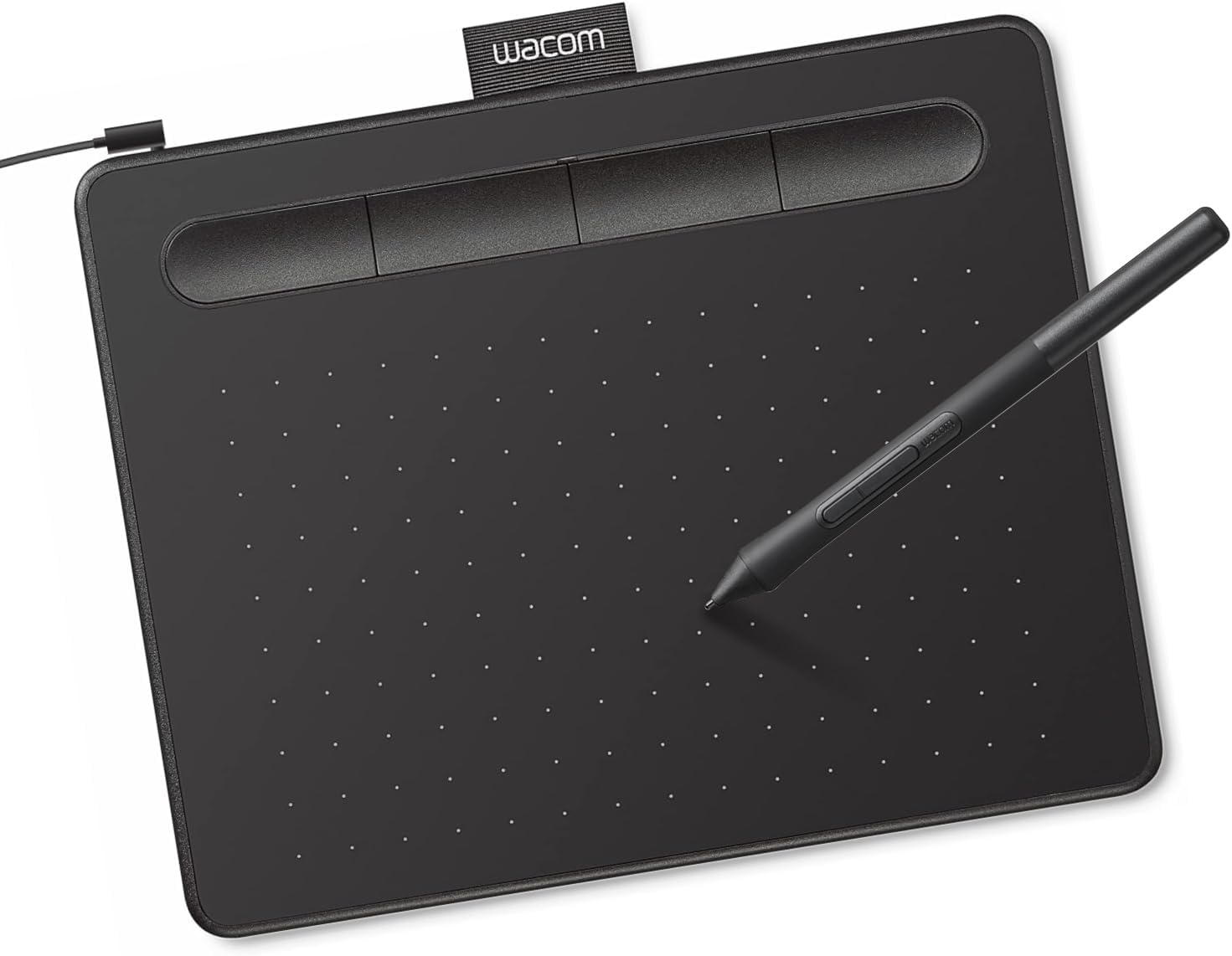
1. Wacom Intuos Small: Best Overall
Our score: 9.2/10 iOur editorial score (1 to 10), based on listing specs, features and how well each pick fits its use case. It is not an Amazon customer rating.
Wired USB setup Battery free pen Software included Works with most programs
The Wacom Intuos Small earns the top spot because it covers the basics a beginner needs without asking for extra gear. The listing describes it as a wired graphic drawing tablet that ships with a pen and software. The pen uses Wacom’s EMR technology, so it has no battery and never needs charging, which keeps setup simple for a first week of practice. For a child or teen who wants to learn how a pen tablet feels before buying a larger model, this is a calm and dependable place to start.
The tablet connects to a computer and, according to the listing, works with almost any drawing, painting, or photo editing program. Each stroke across the pad moves the cursor on the screen, so new users first learn to match their hand movement to what appears in front of them. The listing also highlights that software is included with each purchase and that owners can register the tablet to reach Wacom’s online training. Those lessons give a beginner a clear route forward without a search for separate tutorials.
This model suits a student who already has a home computer and wants to practice sketching, doodling, labeling diagrams, or writing notes by hand on a screen. It also suits a parent who wants a gift that teaches real digital skills rather than a single activity. Because the pad is small, teens who plan to draw large murals may outgrow it after a few months. Many new users find a small surface easier to control at first, since the arm moves less and the lines stay steadier.
A few practical tips make the first weeks easier. Place the tablet on a flat desk with the cable routed away from the drawing area, and keep the pen in its holder when it is not in use. Set the pen pressure curve in your software before the first session, then draw basic shapes for ten minutes each day before moving to shading. Check the listing for the cable length and any spare pen nibs before ordering, since the title alone does not state them.
2. XPPen Deco 01 V3 10×6 Drawing Tablet: Best Starter Pen Tablet

Our score: 9.0/10 iOur editorial score (1 to 10), based on listing specs, features and how well each pick fits its use case. It is not an Amazon customer rating.
10 x 6.25 inch area 16,384 pressure levels 8 shortcut keys 8 mm thin
The XPPen Deco 01 V3 is a strong starter pen tablet because it pairs a generous drawing area with a sensitive pen in a slim body. The listing gives the working area as 10 by 6.25 inches, and it describes the pen as having 16,384 pressure levels and up to 60 degrees of tilt. Those numbers matter because they let a beginner feel the difference between a light sketch and a heavier stroke. The listing also stresses that the design was made with new artists in mind, which explains its place near the top of this guide.
The core of the package is the tablet and a battery free stylus, so the pen never needs charging. The pad has eight customizable shortcut keys that work for both right and left hands, which means undo, brush size, or zoom can sit within easy reach. The listing says the tablet connects with USB C to USB C and includes adapters for other USB C ports, which helps when you switch between a laptop and a desktop. For Android phones and tablets, the listing recommends the XPPen Tools app so the drawing area matches the screen shape.
This model suits a beginner who wants a large, flat surface to draw on, and a teen who plans to take notes or sketch during class. Parents will find it useful for a child who is moving from crayons to digital art, because the drawing area is big enough for full pages. The listing presents the tablet as a learning tool, so it fits best with a clear plan that covers lines, shapes, and simple shading before any complex artwork is attempted.
Some caveats matter here. Like most pen tablets, it does not show your drawing on its own surface, so new users must learn to watch the computer screen while the hand moves across the pad. Expect a few weeks of adjustment before lines feel natural, and start with large slow strokes. Store the tablet flat so the surface and cable are not bent, and replace the pen tip when it wears down so line quality stays consistent.
3. PicassoTab 10″ Standalone Drawing Tablet: Best Standalone with Lessons

Our score: 8.8/10 iOur editorial score (1 to 10), based on listing specs, features and how well each pick fits its use case. It is not an Amazon customer rating.
10 inch screen 6GB RAM 64GB storage 4096 pen levels
The PicassoTab 10 is the standout standalone pick because it works without a computer at all. Its 10 inch screen runs drawing and animation apps directly on the device, which makes it a good match for a beginner who wants to sketch on the couch or at a kitchen table. The listing also highlights preloaded apps and a lifetime tutorial upgrade, which gives new users a reason to keep practicing day after day.
The listing names a 4096 level active pen and a laminated display that it says reduces glare and parallax for a smoother feel. It also lists four bonus accessories: a protective case, a drawing glove, a universal power adapter, and a screen protector that is already applied. Inside the device, an octa core processor, 6GB of RAM, and 64GB of storage give the apps room to run, and the listing says the storage can expand up to 1TB. The Xplore app is described as offering drawing guides and instant help, so a student can look up a technique without leaving the tablet.
This tablet suits a beginner who wants everything in one place, including apps, lessons, and a case for travel. It also works for a teen who likes to sketch on the go, since it does not need a laptop to function. Parents should note that a standalone device takes more care than a simple pen pad, because the apps, storage, and updates all live on the tablet itself. If screen time is a concern at home, set time limits in the device settings before the first lesson.
Practical tips: charge the device fully before the first lesson, pick a single app to learn so you do not jump between five programs, and use the glove if your palm rests on the screen. Expect a short adjustment period for pen pressure, and copy finished art to a phone or cloud folder for safekeeping. A standalone tablet rewards a steady routine more than one long weekend session, so plan short daily blocks instead.
4. HUION HS611 10×6 inch Drawing Tablet 8192 Pen Pressure: Best for Shortcut Keys

Our score: 9.0/10 iOur editorial score (1 to 10), based on listing specs, features and how well each pick fits its use case. It is not an Amazon customer rating.
10 programmable keys 8192 pen levels 7.3 mm thin 550 g weight
The HUION HS611 10×6 is the best pick for learners who want many shortcut keys on the tablet itself. Its listing describes ten programmable press keys and a touch strip that can zoom the canvas, along with eight multimedia keys for volume, track changes, and switching between programs. Those controls let a beginner set up undo, brush, and zoom shortcuts once and then keep the hand on the pen. The listing also notes that the touch strip can be set to zoom, so a learner can move around a large drawing without lifting the pen.
The working area measures 6.35 by 10.17 inches, and the listing says the pad is only 7.3 mm thick and weighs 550 g, which makes it easy to slip into a backpack. The battery free PW500 pen offers 8192 pressure levels and 60 degrees of tilt, and it does not need a battery or charging. The tablet uses a Type C connection and is listed as compatible with Windows 7 or later, macOS 10.12 or later, and Android 6.0 or later through an adapter.
This model suits a beginner who uses a home computer and wants to build an efficient workflow from the first day. It is also a good fit for a teen who sketches between classes, since the setup is quick and the pad is light enough for a school bag. Some phone models do not show the cursor, according to the listing note, so families who plan to draw on a phone should read that note carefully before buying. Learners who draw a lot will appreciate that the keys can be remapped to match the software they use.
Practical caveats: install the driver and any companion software from the maker before the first session, so the shortcut keys and pen buttons respond the way the listing describes. Keep the press keys clean and the touch strip dry, and avoid dropping the pad on a corner, since the thin body is built for portability rather than heavy impacts. Start with two or three shortcuts only, then add more as your habits grow.
5. Wacom Intuos Medium: Best Wireless Option

Our score: 9.0/10 iOur editorial score (1 to 10), based on listing specs, features and how well each pick fits its use case. It is not an Amazon customer rating.
Bluetooth or USB A Battery free pen Software included Works with most programs
The Wacom Intuos Medium is the best wireless option in this guide because it can connect over Bluetooth as well as a USB A cable. The listing calls it a Bluetooth graphics drawing tablet with a pen and software, and it keeps the battery free EMR pen approach that defines the Intuos line. A beginner who wants to draw on the sofa, in a classroom corner, or outdoors can do so without a cable running across the desk.
According to the listing, the tablet works with any software program, so a child can use a free sketch app or a paid photo editor without changing the hardware. Software comes with the purchase, and registering the tablet unlocks access to Wacom’s online training. The medium size gives more room for arm movement than a small pad, which helps with larger strokes and smoother curves. Together those points make it a sensible middle choice between a small starter pad and a large studio tablet.
This model suits a beginner who wants one tablet that can grow with them. A medium sized pad can handle sketches, comics, and photo edits, so the same device can serve a child in early grades and a teen working on school projects. Parents who want a gift that keeps paying off over several years may find this a sensible choice, especially if the child already has a computer at home and wants a regular practice routine.
Practical tips: pair the tablet over Bluetooth only after the first wired setup, because a USB connection is easier to troubleshoot when a driver is new. Keep the pen in its holder and store the tablet away from heat sources, which can damage the surface over time. Wireless use can drain a laptop battery faster, so plug in during long sessions. Begin each lesson with a few warm up strokes to build control before any detailed work.
6. RubensTab T11 Pro standalone Drawing Tablet: Best Portable Screen

Our score: 8.8/10 iOur editorial score (1 to 10), based on listing specs, features and how well each pick fits its use case. It is not an Amazon customer rating.
10.1 inch Full HD 5800mAh battery USB C charging No computer needed
The RubensTab T11 Pro is the best portable screen pick because it works as a self contained drawing device with a 10.1 inch Full HD display. The listing describes vibrant colors and sharp details at 1920 by 1200 resolution, and it says the device is designed to run on its own. Because no computer is needed, the tablet can move from a bag to a desk in seconds, which suits a beginner who wants to draw in several rooms.
Power comes from a built in 5800mAh battery, which the listing says supports up to five hours of continuous use, and the device charges over USB C. The pen needs no battery and offers adjustable pressure sensitivity, so a learner can change how firmly the line responds. The bundle includes pre installed drawing apps and a case with an adjustable stand, which makes the tablet useful for both desk sketching and note taking in class.
This tablet suits a beginner who wants a single device for drawing, reading, and light note taking. It also suits a student who needs a portable screen for sketch notes in lectures or brainstorming sessions, since the listing names those uses directly. Keep expectations realistic, because the five hour figure is a listing claim and actual use depends on screen brightness and the apps you run. Parents should check that the included apps suit the child’s age before handing over the device.
Practical caveats: the listing mentions certification to GMS, FCC, and CE standards, which is worth noting for family use. Store the device in its case to protect the glass between sessions. Start with a single drawing app and a simple brush set, then add layers and effects as the skill grows. A twelve month warranty is listed, so keep the order details and receipt in a safe folder. Pack the device in its case for trips, and keep the charger and cable in the same pouch so nothing gets lost.
7. RubensTab T12 Standalone Drawing Tablet: Best Larger Screen

Our score: 9.0/10 iOur editorial score (1 to 10), based on listing specs, features and how well each pick fits its use case. It is not an Amazon customer rating.
12 inch display 6GB RAM 128GB storage Octa core CPU
The RubensTab T12 is the best larger screen pick, with a 12 inch Full HD display that gives beginners more canvas space than the smaller tablets on this list. The listing says the screen is fully laminated to minimize parallax, which means the pen tip sits closer to the spot where the line appears. The design is described as ultra slim, so the bigger screen does not turn the tablet into a heavy slab.
The listing names several apps, including Sketchbook, Krita, Infinite Painter, and FlipaClip, which cover drawing, painting, and simple animation. In the bundle it lists a case, a drawing glove, a universal power adapter, and a screen protector that is pre applied. Under the hood the device has 6GB of RAM, 128GB of storage, and an octa core processor, so the apps have room to run and the files have room to live.
This tablet suits a teen who has moved past the basics and wants a bigger workspace for character drawings or comic panels. It also suits a beginner who wants to grow into layered art without buying a new device later. Because the screen is large, the tablet is best used on a desk, and a child may find it awkward on a bed or in a car seat. Parents should weigh the extra size against how often the device will travel.
Practical tips: start with the animation app only after you can draw a simple shape cleanly, since frame by frame work demands patience. Use the glove to limit palm marks and hold the pen the way you would a regular writing tool. Keep the screen protector in place and store the tablet in its case between sessions. A larger screen makes small mistakes easy to spot, so mix zoomed in practice with full page drawing.
8. T8 Standalone Drawing Tablet with Screen: Best Gift Pick

Our score: 9.0/10 iOur editorial score (1 to 10), based on listing specs, features and how well each pick fits its use case. It is not an Amazon customer rating.
8 inch screen 1200×800 resolution 4000mAh battery Android 13
The T8 with Screen is the best gift pick in this guide, because its listing is written with beginners and gift buyers in mind. It has an 8 inch display at 1200 by 800 resolution, a pressure sensitive pen, and a 4000mAh battery that the listing says lasts up to five hours depending on use. The title calls it a gift for a beginner, a digital artist, or a designer, which helps families decide who it suits.
The device runs Android 13 and uses an MTK octa core processor, so it works as a standalone drawing tablet without a computer. The listing says it comes with pre installed drawing apps and tutorials, and it names SketchBook, ArtFlow, and ibis Paint X as apps that install on Android. It also lists certification to GMS, FCC, UKCA, and CE standards and a one year warranty, which gives gift buyers some confidence about support after the holiday.
This model suits a child who has shown interest in drawing and would enjoy a device that feels like a small personal studio. It also suits a teen who wants to sketch on the go, since the battery and screen are designed for portable use. The 8 inch display is compact, so a serious artist may want a larger tablet later. Gift buyers should check whether the recipient already enjoys Android apps, because the tablet relies on that system.
Practical tips for gift giving: include a short practice plan on a card, add a simple paper sketchbook for warm up drawings, and set up the apps together during the first session. Check the accessory list in the listing before wrapping, and keep the packaging so any issue can be handled smoothly. A one year warranty is only useful if the purchase record is saved, so ask the giver to keep the order confirmation as well.
How to Choose the Best Beginner Drawing Tablets
What Makes a Drawing Tablet Beginner Friendly
A beginner friendly drawing tablet removes as many obstacles as possible. The first obstacle is setup, so a wired pen tablet that connects with one cable, or a standalone device with preloaded apps, can save an afternoon of confusion. The second obstacle is feedback, so the pen should respond smoothly to light and firm pressure. The third obstacle is the surface, which should feel stable under the hand and not slide when a child leans into a stroke.
Look for a pen that does not need charging, a pad or screen large enough to draw a full sketch, and a listing that names the software it runs. Lessons or guides help too, because a new artist learns faster when a tutorial explains the first shapes step by step. None of these features guarantee progress on their own, but together they make the first month feel less like a puzzle and more like drawing.
Pen Tablet or Standalone Tablet
A pen tablet has no screen for drawing. The pad sits on the desk, the pen moves across it, and the image appears on a computer monitor. Many professionals prefer this style because it is precise, but beginners often find the split between eye and hand frustrating at first. A standalone tablet has its own screen and apps, so the drawing appears directly under the pen and the learning curve feels closer to sketching on paper.
Choose a pen tablet if you already own a computer and want a durable, simple pad that works with many programs. Choose a standalone tablet if you want everything in one device and plan to draw away from a desk. The right answer depends on the room, the budget logic of the household, and whether the learner will mostly sketch or mostly edit photos later on.
Learning Curve and Your First Two Weeks
The first week is about control, not artwork. Spend short sessions drawing straight lines, circles, and wavy lines, and watch how the cursor or ink responds when you press lightly or firmly. Keep the wrist relaxed and move from the elbow or shoulder, since small wrist movements tend to create shaky lines when a learner is just starting out. Loosen the grip, rest the forearm on the desk, and let the pen glide rather than pressing it into the pad.
The second week adds simple forms such as cubes, cups, and leaves. Trace a picture first, then draw the same subject from a photo, and finally try a short sketch from memory. Many beginners see clearer lines after a dozen short sessions, although every learner moves at a different speed and that is perfectly normal. Celebrate a clean circle as much as a finished picture, since small wins keep a young artist practicing.
Practice Ideas That Build Real Skill
Practice works best when each session has one target. One day can focus on line weight, another on shading with soft strokes, and another on color mixing with a simple palette. Ask the learner to draw the same apple five times, each time with a different pressure level, and compare the results side by side to see the change clearly. Write one line under each version describing what changed, which trains the eye to notice detail.
Mix structured drills with playful projects. Draw a comic panel, design a sticker, or sketch a pet from several angles. Keep a small folder of finished pages so progress is easy to see. A weekly challenge, such as drawing with only one brush, keeps motivation high without adding pressure. Rotate the challenge each week so practice stays fresh, and let the learner choose the next theme when possible.
What Is Usually Included in the Box
Most drawing tablets ship with a pen, a cable or adapter, and some documentation. Some listings add extras such as spare pen nibs, a glove, a protective case, or a screen protector. The listings in this guide name a range of bonuses, from carrying cases to lifetime app upgrades, so compare the included items with what you would otherwise need to buy. A bundle with clear instructions also saves time, since a beginner can start drawing without searching for separate guides.
Extras matter most when they solve a real problem. A glove helps prevent palm marks on a glossy screen, and a case protects a standalone device during trips. Check whether the bundle includes the power adapter for a standalone tablet, because not every family keeps a spare charger at home. If the device is standalone, also check whether a spare pen tip or a stand is included so the screen stays at a comfortable angle.
Pressure Levels, Tilt and Shortcut Keys Explained
Pressure levels describe how many steps the pen can detect between a light touch and a firm press. Higher numbers allow finer control, which helps with soft shading. Among the listings here, the stated values run from 4096 up to 16,384 levels, and each step is only useful when the software reads it well. Beginners rarely need the highest number on the box, but they do need a pen that responds evenly across the whole range.
Tilt tells the software how the pen is angled, which changes brush shape and shading. Shortcut keys on the pad or screen let you undo, zoom, or change brush size without reaching for the keyboard. Start with two or three shortcuts only, then add more once the habit feels comfortable. Shortcut keys work best when they match the commands you use most, so write them on a small card beside the tablet.
Screen Size, Work Area and Desk Space
Screen or work area size changes how a learner moves the hand. A small pad keeps strokes short and controlled, which many beginners find easier at first. A larger surface allows full arm movement and big gestures, which suits sketches and posters. The listings here range from roughly six by ten inches of working area to a 12 inch display, so the choice affects both comfort and space. Smaller pads also suit tight corners, while larger screens reward a learner who likes to sweep the arm across the page.
Measure the desk before ordering. A standalone tablet needs room for its stand or case, and a pen pad needs open space beside the keyboard for a mouse. Check the listing for exact dimensions, since titles rarely give full measurements. A tidy desk makes practice sessions longer and less tiring. Keep the cable on one side of the tablet so it never tangles with the mouse or the pen holder.
Common Beginner Mistakes to Avoid
The most common mistake is pressing too hard. Heavy pressure tires the hand and can make lines look blotchy. Let the pen do the work, and practice light strokes that build up gradually. Another mistake is drawing too small. Tiny sketches push a beginner to grip tightly, so start with large shapes on the biggest area you have. Once those large shapes feel easy, shrink them gradually so the hand learns finer detail without tension.
Many new users also skip setup. They plug in the tablet, draw a few lines, and then wonder why the pen feels off. Install the driver, set the pen pressure curve, and confirm the orientation before the first lesson. Finally, avoid switching apps every session, since learning one program well produces faster results than sampling five. Save the other programs for a later month, when the basics feel automatic and the learner knows what to try next.
Materials, Charging and Safety Notes for Families
Drawing tablets are electronic products, so families should follow the manufacturer’s charging guide and use the supplied adapter or a matching one. Keep cables away from water and heat, and store the device where young children cannot pull on a loose cord. Many listings mention certification marks such as GMS, FCC, CE, or UKCA. Those marks are a useful sign, though they do not replace careful everyday use.
Pen tips and small accessories can be swallowed by very young children, so keep spare nibs and any small parts away from toddlers. Adult supervision is sensible for charging, cleaning, and any app that asks to connect online. Wipe the screen with a soft dry cloth rather than harsh cleaners, and let the device cool before charging after long sessions.
Budget Logic Without Chasing Prices
Budget decisions should focus on what the learner needs over the next year. A pen tablet with a battery free pen and included software can cover early practice well, while a standalone tablet puts the whole setup into one device, which matters when a family has no spare computer. Prices change often, so this guide does not quote them, and each listing shows its current figures. Use the listing to confirm what is included before comparing totals across two or three models.
Think about total value rather than the number on the box. Bonus items, warranty length, storage, and included lessons can make one model a better match even when two options look similar at first glance. Compare two or three finalists side by side, and buy the one whose extras you will actually use. Ask whether the recipient will really use bonus apps or accessories before paying extra for them.
Care, Storage and Gift Tips
Care is simple. Keep the surface clean, avoid pressing on the pen tip with force, and store the device flat or in its case. A soft cloth and a few minutes of attention after each session keep the surface responsive for years. Keep the pen stored in its holder so the tip stays protected, and wipe fingerprints off the glass with a dry cloth.
Gift buyers can help a beginner start well. Add a sketchbook, a few pencils, and a short practice card with ideas. Keep the packaging until the recipient confirms the device works as expected. Consider a shared first lesson together, because a joint session builds confidence faster than an unboxing that happens in silence. Ask the learner to show one finished page at the end of the session, which turns the gift into a shared hobby.
Upgrade Path When Skills Grow
A good first tablet can grow with the learner. Start with a pen tablet or a standalone model that fits the current space and budget logic, then move to a larger pad or a pen display when lines, shading, and layers start to feel limited. Keep a note of the moments when the tool holds you back, because those notes make the next purchase far easier to justify.
Common upgrade signals include a need for a bigger work area, more shortcut keys, or a screen you can draw on directly. Before upgrading, master the basics on the current device and export your best work for a portfolio. That habit makes it clear which feature the next tablet must provide. Keep the older tablet for practice or quick sketches, since a second device is useful when the main one is busy.
Frequently Asked Questions
What is the best beginner drawing tablet overall?
The Wacom Intuos Small is the top pick in this guide. It has a battery free pen, works with most drawing software, and includes software and training. It needs a computer, so it suits families who already own one.
Do beginners need a computer for a drawing tablet?
It depends on the model. Pen tablets such as the Wacom Intuos Small and XPPen Deco 01 V3 connect to a computer or a supported device. Standalone tablets like the PicassoTab 10 and the T8 with Screen run their own apps and do not need a laptop.
Is a standalone drawing tablet easier than a pen tablet?
Many beginners find a standalone model easier to understand because the drawing appears right under the pen. A pen tablet asks the learner to watch a separate screen, which takes some practice. Both styles teach the same core skills once the eye and hand connection feels natural.
How long does it take to learn a drawing tablet?
Most learners feel comfortable with lines and simple shapes within a few weeks of short daily practice. Full control of shading and layers takes longer. Progress depends on how often the learner practices, and every child learns at a different pace.
What does pressure sensitivity mean?
Pressure sensitivity describes how many steps the pen can detect between light and firm pressure. More levels allow finer control of line weight and shading. The number matters less than how smoothly the software responds, so steady practice matters more than the highest figure.
Are battery free pens really battery free?
The pens described in these listings work without a battery or charging. Standalone tablets still need charging for their own battery. Check each listing to confirm which parts need power before you buy, since the pen and the device are powered separately.
Which tablet suits a teen who wants to draw on the go?
The RubensTab T11 Pro and the T8 with Screen are both standalone and compact, with listed battery times up to five hours. The Wacom Intuos Medium can travel between rooms when paired over Bluetooth, but it still needs a computer to run the software.
Is a drawing tablet a good gift for kids?
It can be, when the child has already shown interest in drawing and the age fit is right. Choose a model with included lessons or apps, add a sketchbook, and plan a short first session together. Read the listing for age guidance before ordering.
How do I keep a beginner motivated?
Set short goals, such as five minutes of straight lines, and celebrate small wins. Rotate between structured drills and fun projects like comics or pet sketches. Keep finished work in one folder so progress is easy to see over several weeks.
When should a beginner upgrade?
Upgrade when the current tablet clearly limits the learner, such as a small work area, too few shortcut keys, or a need to draw directly on a screen. Master the basics first and keep examples of earlier work so the change is easy to measure.
The Bottom Line
For most beginners, the Wacom Intuos Small is the easiest place to start, because its battery free pen, broad software support, and included training keep the first months simple. If your family wants no computer at all, the PicassoTab 10 is the strongest standalone option in this list.
Whichever tablet you choose, pair it with short daily practice and one clear first project. Prices change, so check each live listing before you buy.
Updated for the 2027 buying season. Amazon listings and availability change often, so check the product page for current details.




Write Your Review
No reviews yet. Be the first to share your experience!